
PCI Passthrough
The screenshots illustrate the English user interface. Names and addresses shown are examples; use the values defined for your environment.
Plain-language terminology
| Term | Meaning |
|---|---|
| PCI device | A physical controller or adapter installed in the server, such as a network, Fibre Channel, graphics, or storage controller. |
| PCI function | An independently addressable part of a PCI device. A dual-port adapter may expose one function per port. |
| PCI passthrough | Direct assignment of a physical PCI function to one virtual machine. The VM uses the real hardware instead of an emulated device. |
| IOMMU | Input/Output Memory Management Unit. A processor and platform feature that isolates device memory access so hardware assigned to a VM cannot freely access other server memory. |
| IOMMU group | A set of PCI functions that the platform cannot safely isolate from one another. All members are shown together so the administrator can see shared hardware dependencies. |
| Whole-group assignment | Assignment of every usable endpoint in an IOMMU group to the same VM. Infrastructure bridges remain under server control. |
1. Purpose and audience
This guide is for administrators who manage virtual machines through the eEVOS graphical interface. It explains planning, assignment, verification, removal, and the restrictions that apply to VMs using physical PCI hardware.
2. Before you begin
Confirm that the VM can tolerate being fixed to one physical server. Schedule downtime: the VM must be completely shut down before changing PCI assignments. Install or obtain the correct guest operating-system driver before the maintenance window.
Record the VM name, physical server, PCI address, adapter model, port cabling, and rollback plan. Do not assign a host management adapter, active storage controller, or other device required by the server.
3. Open PCI Passthrough
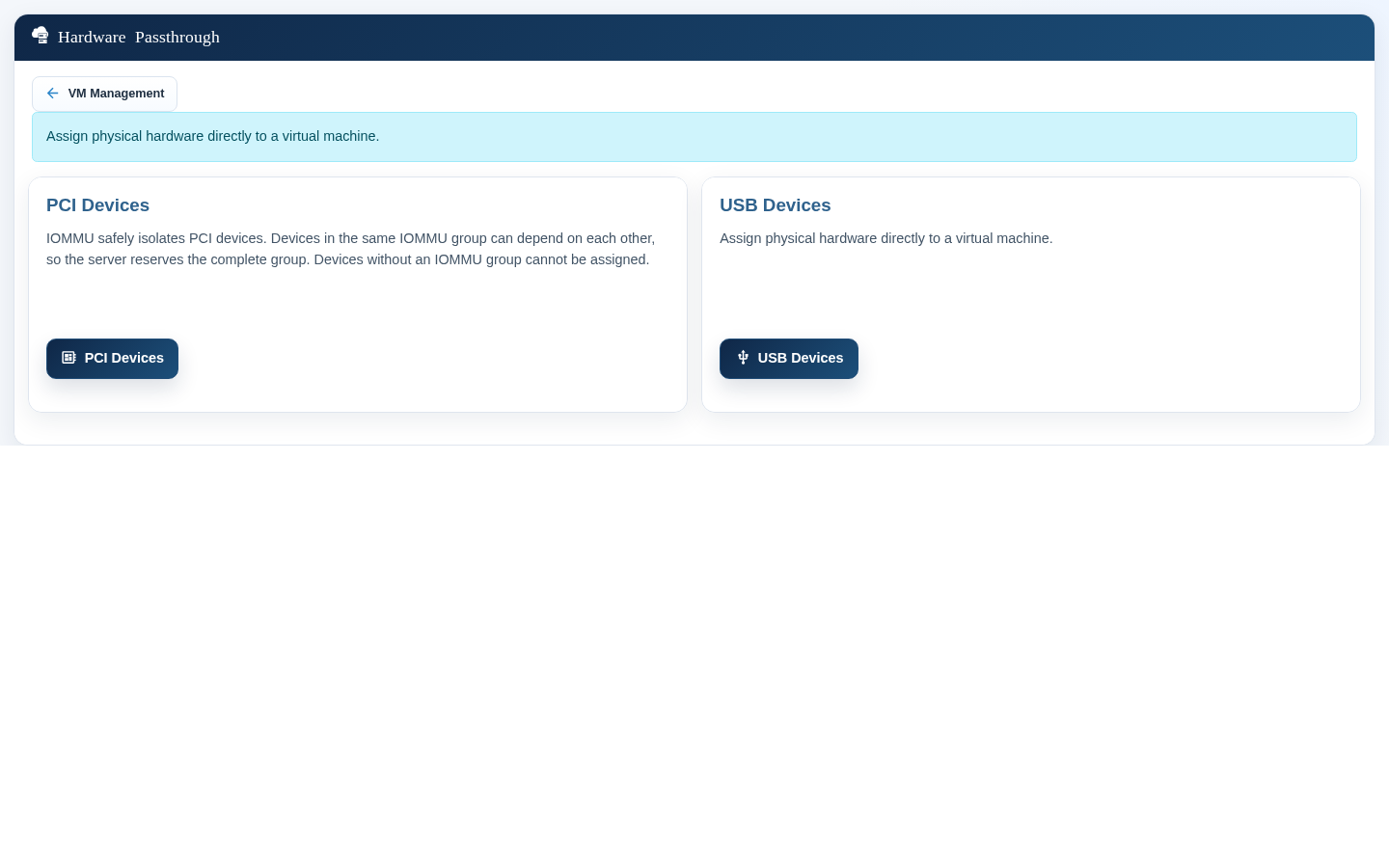
Open VM Management, open Infrastructure, and select Hardware Passthrough. On the Hardware Passthrough menu, select PCI Devices. The Assigned devices table shows the VM, PCI address, device description, VM state, and server. Review this table before making changes.
4. Understand the IOMMU group
Select Assign a device. Choose a stopped VM and a local PCI device. After selecting a device, the dialog shows its IOMMU group and known group members.
Use the What is IOMMU? button for an explanation in the interface. Already assigned devices and functions belonging to an assigned IOMMU group remain visible in the list, are labelled with the VM name, and cannot be selected again.
5. Assign one PCI function
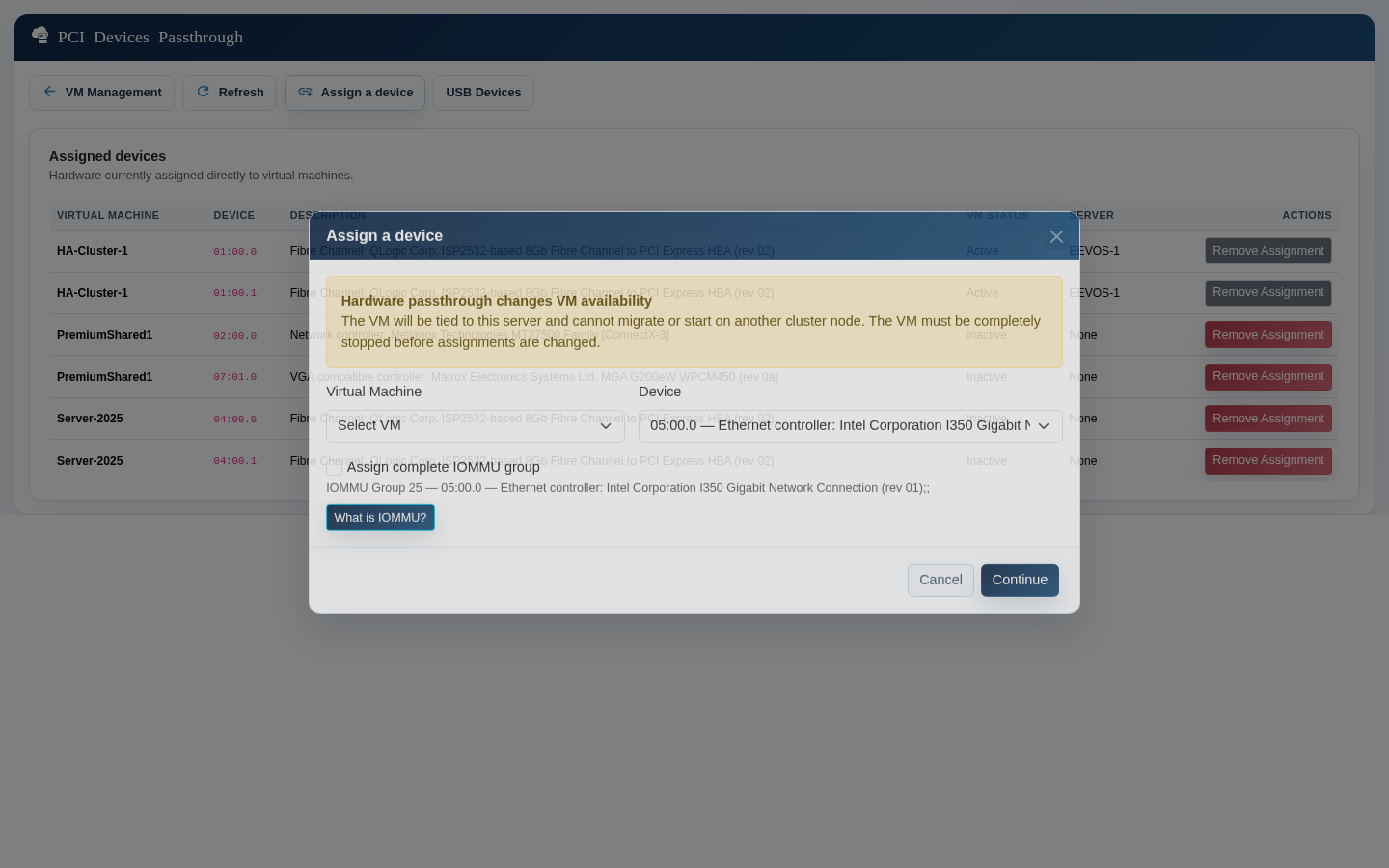
Select the stopped VM and the required PCI function. Leave Assign complete IOMMU group clear, select Continue, review the confirmation, and continue. A progress dialog remains visible while the server updates the hardware assignment. The VM remains stopped after the operation.
6. Assign a complete IOMMU group
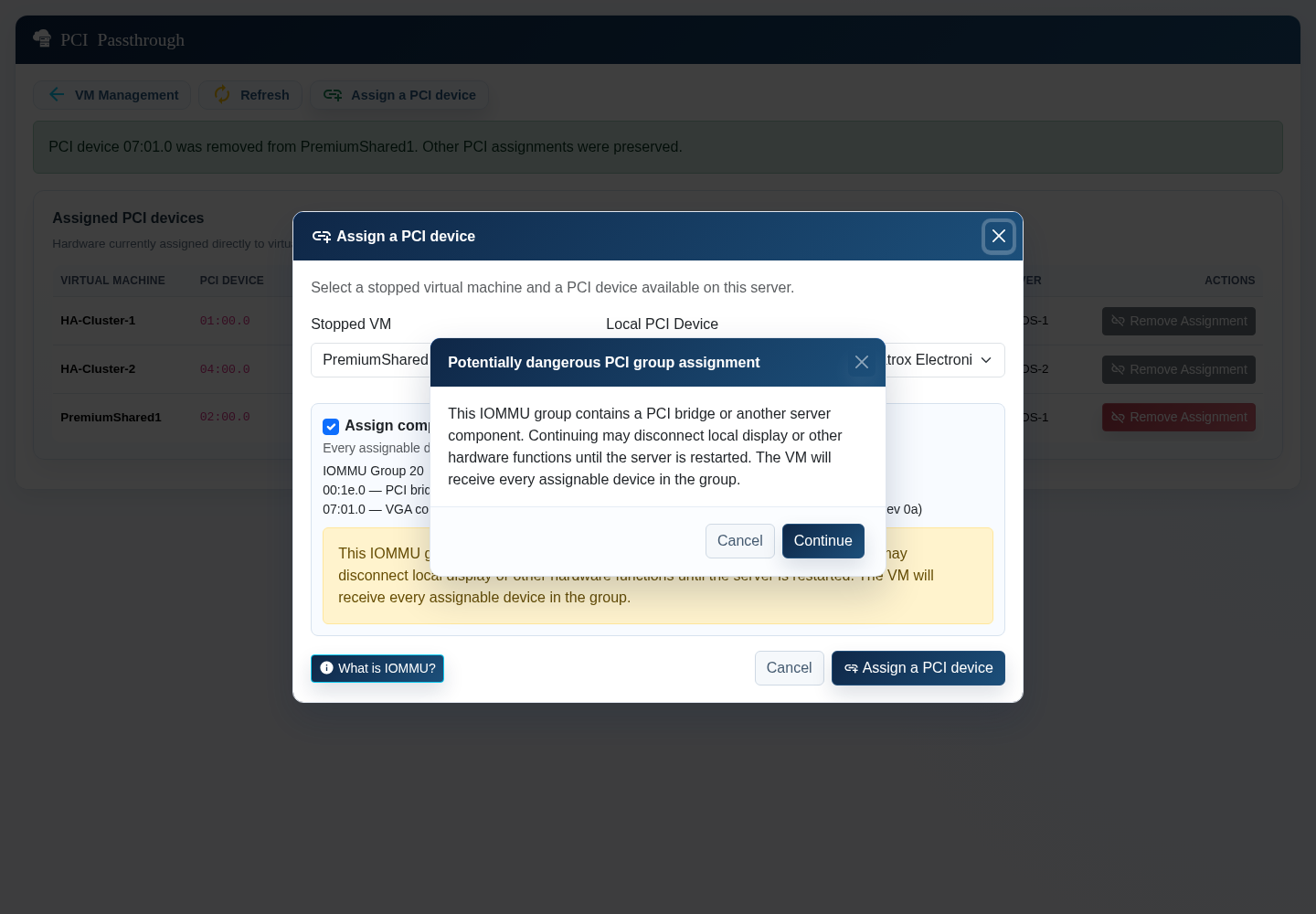
Select the VM and any endpoint in the required group, then select Assign complete IOMMU group. Review every member shown below the checkbox.
Continue only when the impact is understood and a maintenance window is active. Assigning a group that contains related server hardware can interrupt local display or other functions until the assignment is removed or the server is restarted.
7. Verify the assignment
After a successful operation, confirm that every expected PCI address appears under the correct VM and server. Start the VM and verify that the guest operating system detects the hardware and loads the correct vendor driver.
Test the actual workload and record the result. If the guest does not detect the device, shut the VM down before changing the assignment.
8. Assign multiple devices to one VM
Repeat the assignment procedure for each additional PCI function. Existing assignments are preserved. The table shows one row per assigned function.
A physical function cannot be assigned twice. Existing assignments and their IOMMU groups are shown but disabled in the device list. Functions with a shared hardware dependency should be assigned together to the same VM.
9. Remove one assignment
Shut down the VM completely. In Assigned devices, locate the exact PCI address and select Remove Assignment. Confirm the address shown in the dialog.
Only that PCI assignment is removed. Other devices assigned to the VM remain present. The physical hardware remains reserved for passthrough and is not automatically returned to the server host driver.
10. Active VM behavior
For an active VM, Remove Assignment is grey but remains clickable. Selecting it displays a message that the VM must first be shut down. No hardware or VM configuration is changed.
11. Migration restriction
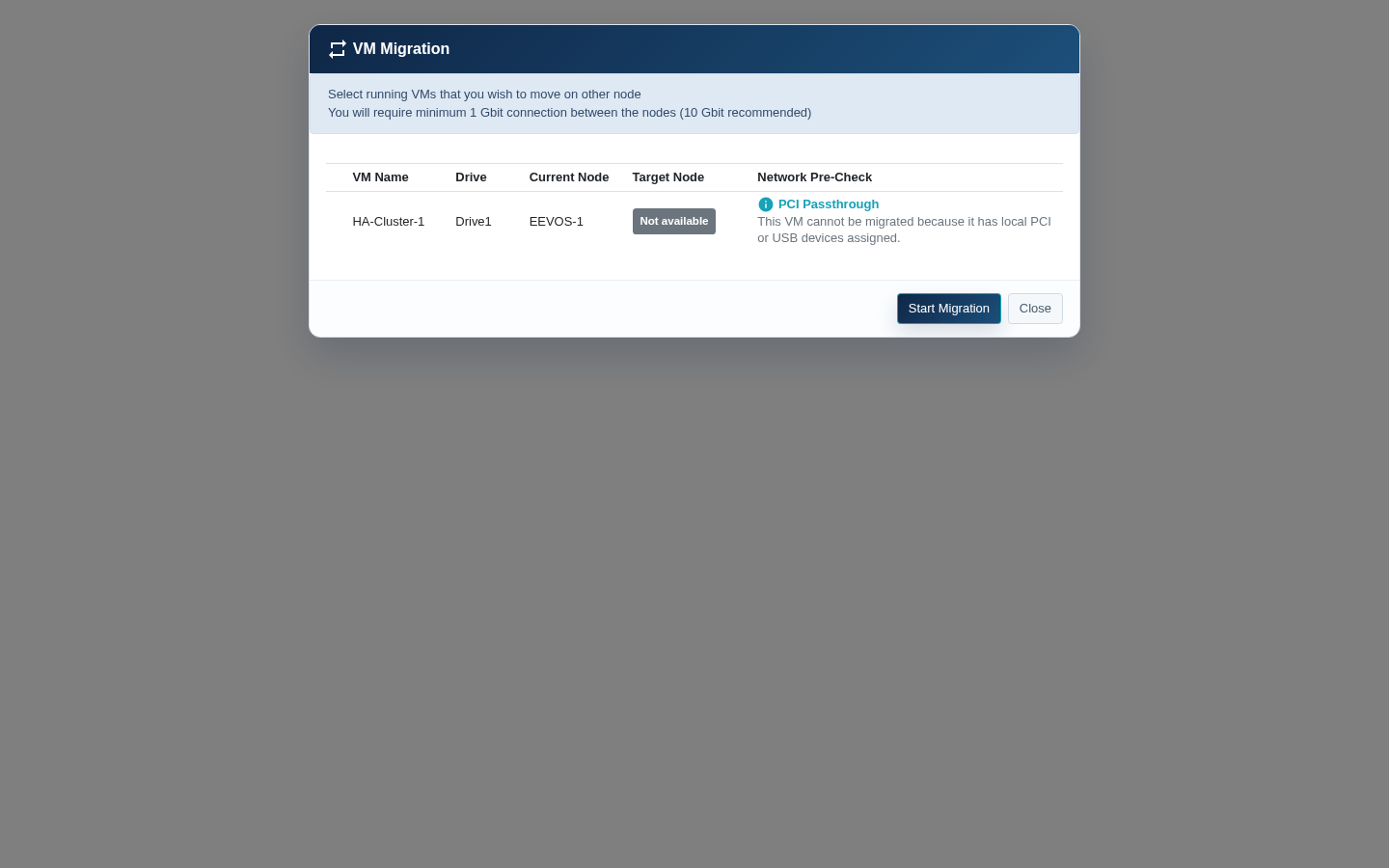
VMs with PCI passthrough remain visible on the node-migration screen so administrators can understand their state. Their target selector is disabled and the page states that migration is unavailable because PCI hardware is assigned.
Remove all PCI assignments and complete any required hardware reconfiguration before planning normal VM mobility. Merely stopping the VM does not make a passthrough VM migratable.
12. Troubleshooting
Device not listed: confirm that IOMMU/Intel VT-d/AMD-Vi is enabled in server firmware and that the operating system detects the PCI device.
No stopped VM is available: shut down the VM and refresh the page. A suspended or paused VM is not considered fully stopped.
Network adapter cannot be assigned: remove host IP addresses, routes, virtual-switch or bond membership, and persistent host network configuration only after confirming the adapter is not needed by the server.
Whole-group assignment: inspect all listed members. Assigning related functions together can affect local display, reset behavior, or another function sharing the group.
Device is marked already assigned: the device or another function in its IOMMU group is already attached to the VM named in the list. Remove the existing assignment before attempting to use that hardware elsewhere.
Assignment takes time: keep the progress dialog open. Do not refresh or close the browser while the server is reserving the hardware and updating the VM configuration.
Guest does not detect hardware: shut down the VM, verify the assigned address and guest driver, then review server and VM logs. Do not repeatedly change assignments while the VM is active.
13. Change record
For each change, record date, administrator, VM, server, PCI address, IOMMU group, assignment scope, guest driver version, cabling, validation result, and rollback result.