
ZFS Dataset Tuning
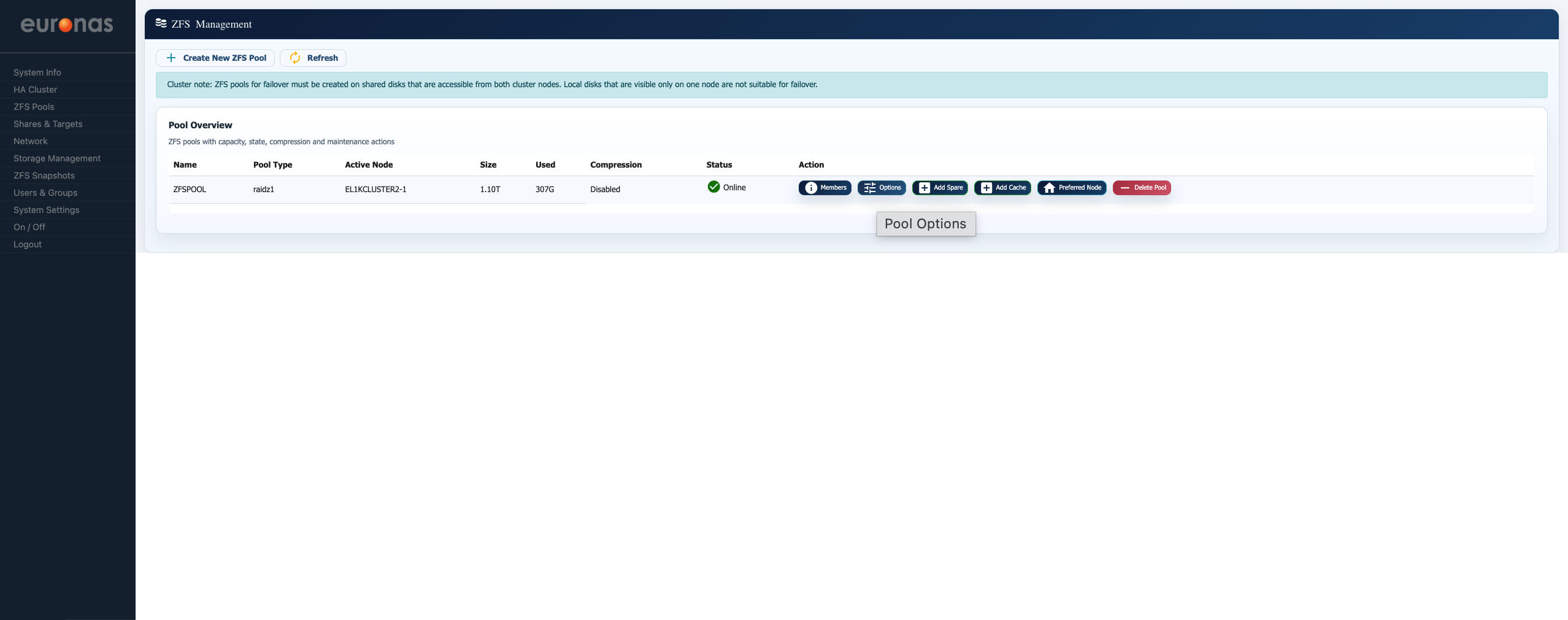
From the ZFS Management screen, select the Options button.
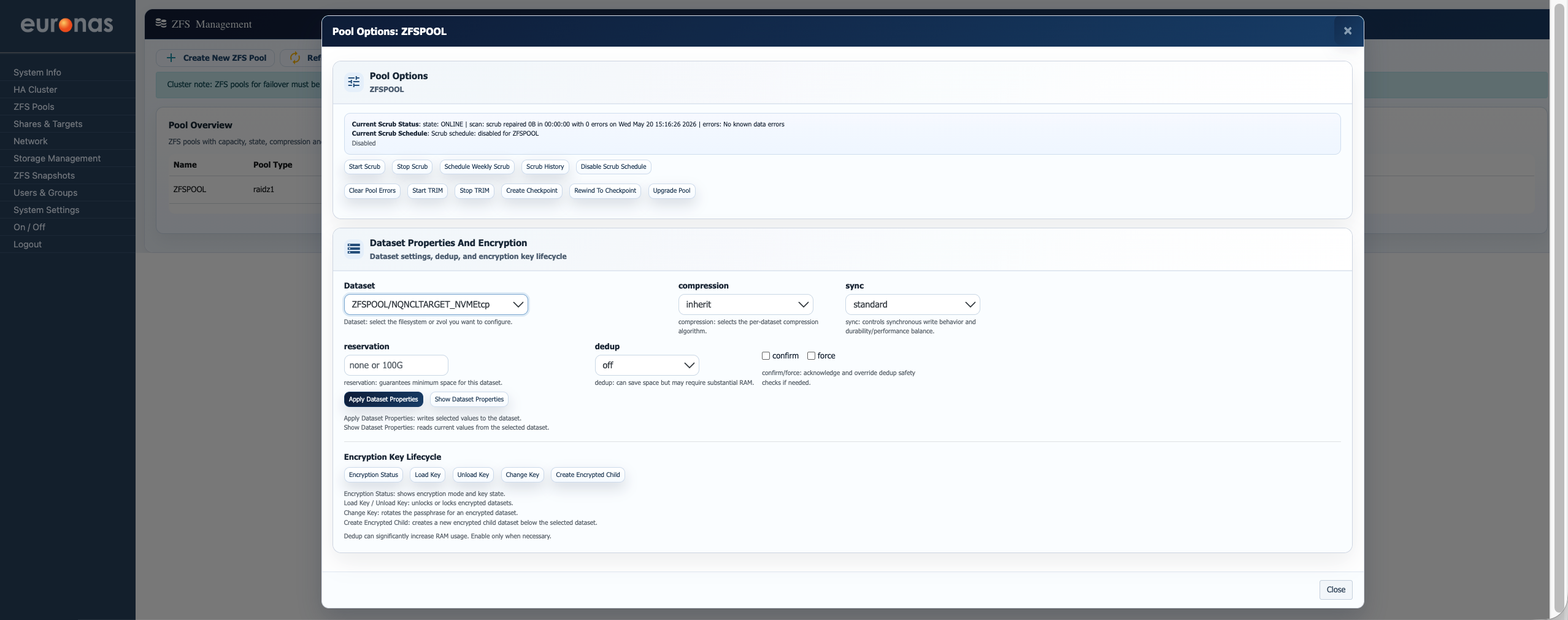
This will open the Pool Options screen, allowing administrators to manage pool dataset properties, compression, deduplication, synchronisation behaviour, and encryption settings for the selected ZFS pool.
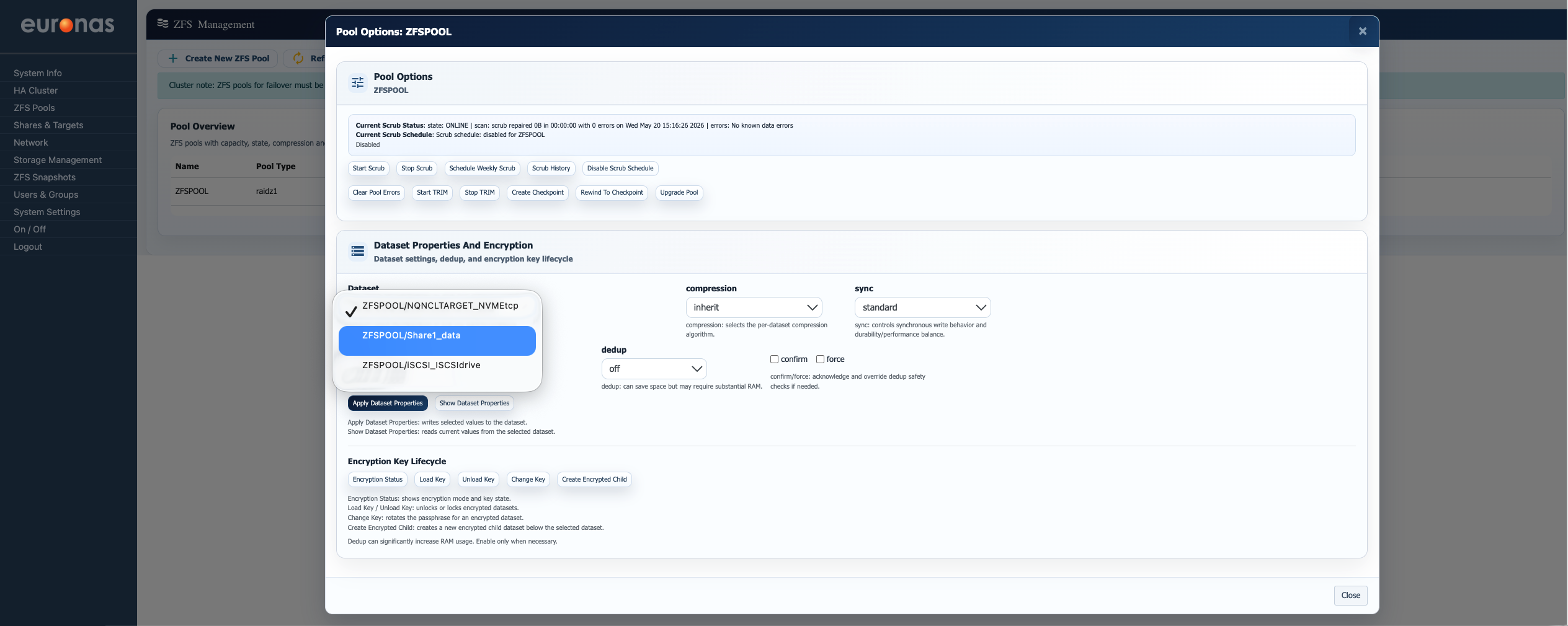
From the Dataset drop-down on the left-hand side of the screen, select the dataset you wish to configure. In this example, we will configure the ZFSPOOL/Share1_data dataset.
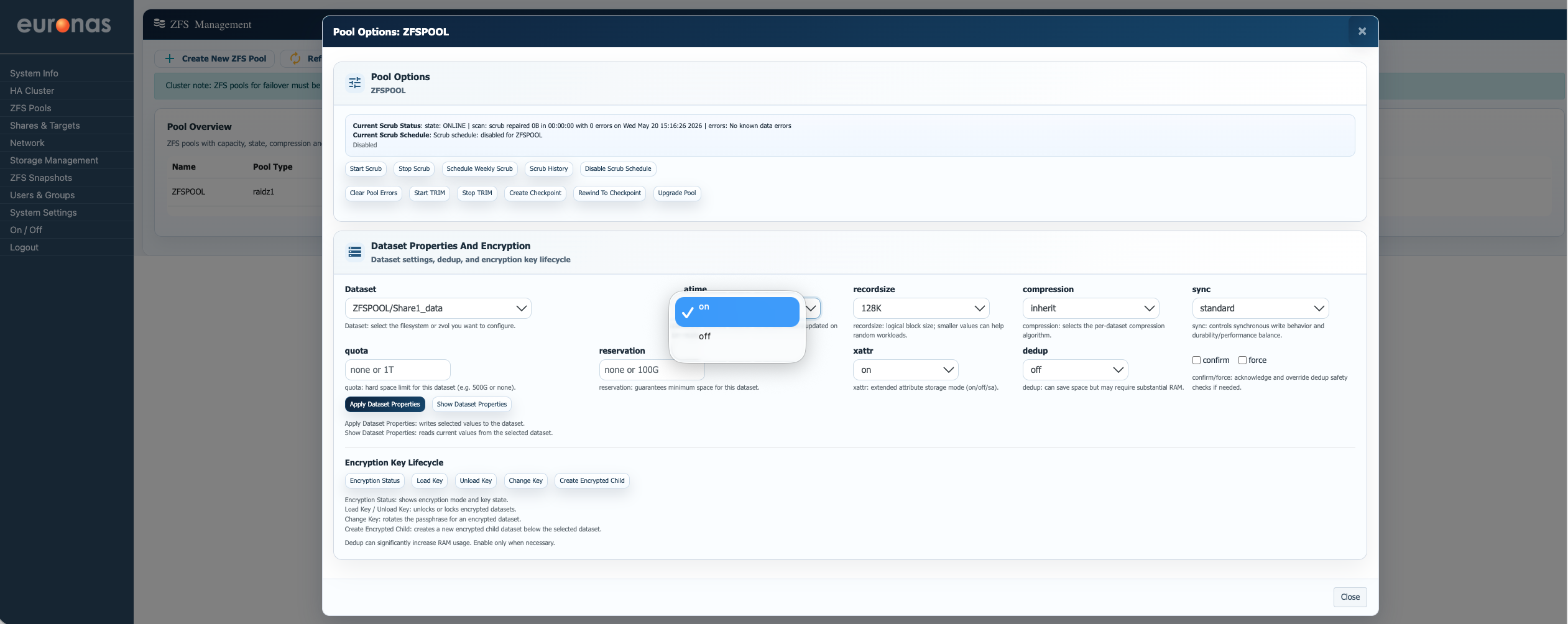
The atime setting controls whether ZFS updates the file access timestamp every time a file is read. While this may appear to be a small setting, it can have a noticeable impact on both performance and application behaviour depending on the workload.
When atime is enabled (on), ZFS records the last time a file was accessed. Some backup, archive, and data lifecycle management platforms rely on this information to determine whether files are still active, when they were last referenced, or whether data should be moved, retained, or expired. Disabling atime in these environments can interfere with retention logic, reporting accuracy, or automated data management policies.
In contrast, workloads such as virtual machine storage, media repositories, or high-performance application datasets often gain little value from access-time tracking. In these cases, disabling atime (off) can reduce unnecessary metadata updates and lower background disk activity caused by constant file reads.
Understanding the workload is therefore important before changing this setting. A configuration that improves performance for one application may negatively affect the operational behaviour of another. If in doubt, euroNAS recommends discussing the intended workload and dataset design with the support team prior to making production changes. Please contact support@euronas.com for guidance.
The recordsize setting is one of the most important ZFS tuning parameters as it controls the maximum block size used when storing data within the dataset. Selecting the correct value can have a major impact on performance, latency, fragmentation behaviour, compression efficiency, backup performance, and overall storage efficiency.
ZFS writes data in blocks, and the recordsize value determines how large those blocks can become. Larger record sizes reduce metadata overhead and generally improve sequential throughput, while smaller record sizes can improve responsiveness for random workloads by reducing read and write amplification.
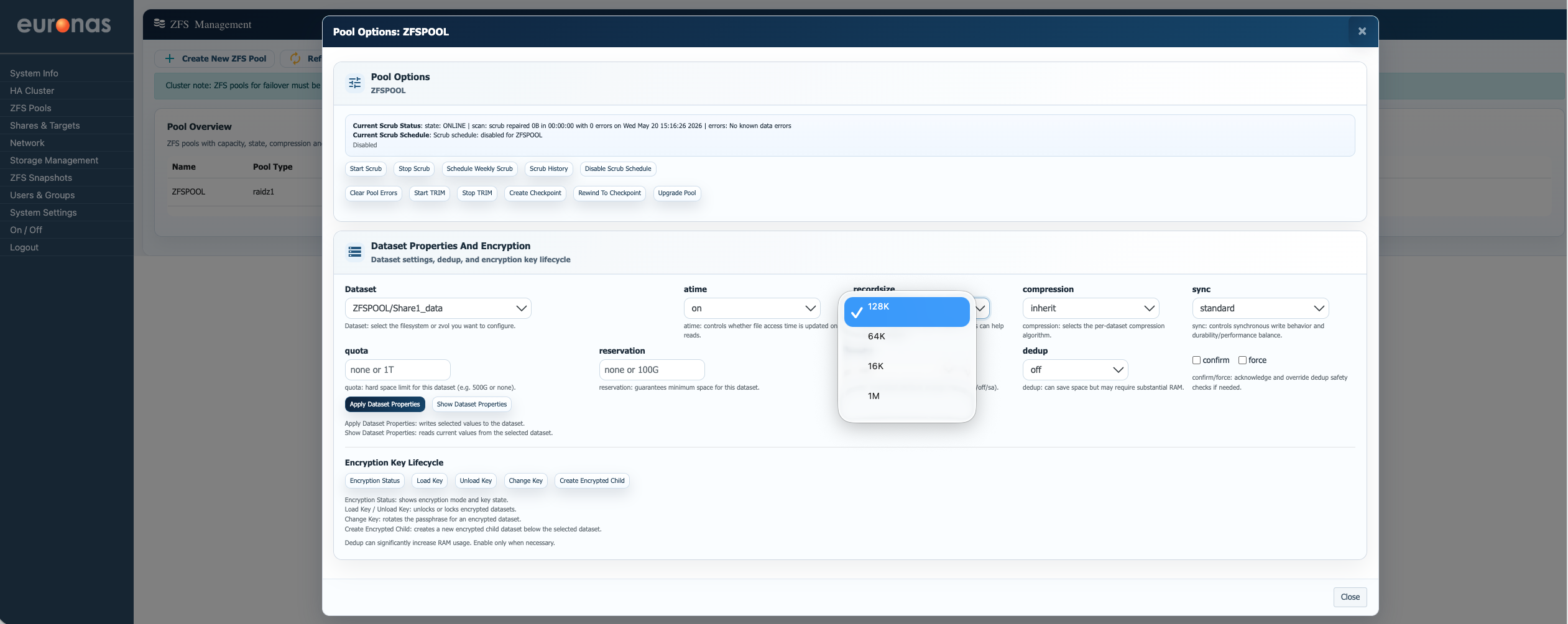
The available values shown here are:
- 16K – Typically used for highly random workloads such as databases or small-block transactional applications. Smaller records reduce the amount of unnecessary data read or rewritten during random I/O operations.
- 64K – Often used as a balanced middle ground for mixed workloads where data patterns are less predictable.
- 128K – The default and most common general-purpose setting for file shares, virtual machine storage, and standard application workloads. It provides a strong balance between throughput, metadata overhead, and compression efficiency.
- 1M – Optimised for large sequential workloads such as backup repositories, media archives, surveillance storage, or large object storage datasets. Larger record sizes allow ZFS to move significantly more data per operation with lower metadata overhead and improved compression ratios.
This setting becomes particularly important for backup workloads. Modern backup applications often write very large sequential streams of data, and using a small record size in these environments can dramatically increase fragmentation, metadata activity, and unnecessary I/O overhead. In contrast, larger record sizes such as 1M can substantially improve ingest performance, sequential read throughput, and storage efficiency for backup repositories.
However, incorrectly using very large record sizes on random-access workloads such as databases or VM boot volumes can negatively affect latency and increase write amplification, as small changes may require larger blocks to be rewritten.
Because recordsize directly affects how data is physically laid out on disk, changing it on an active dataset does not immediately rewrite existing data. The new setting only applies to newly written blocks going forward.
Understanding the application workload before changing this setting is therefore critical. If in doubt, euroNAS recommends discussing dataset tuning and workload design with the support team before making production changes.
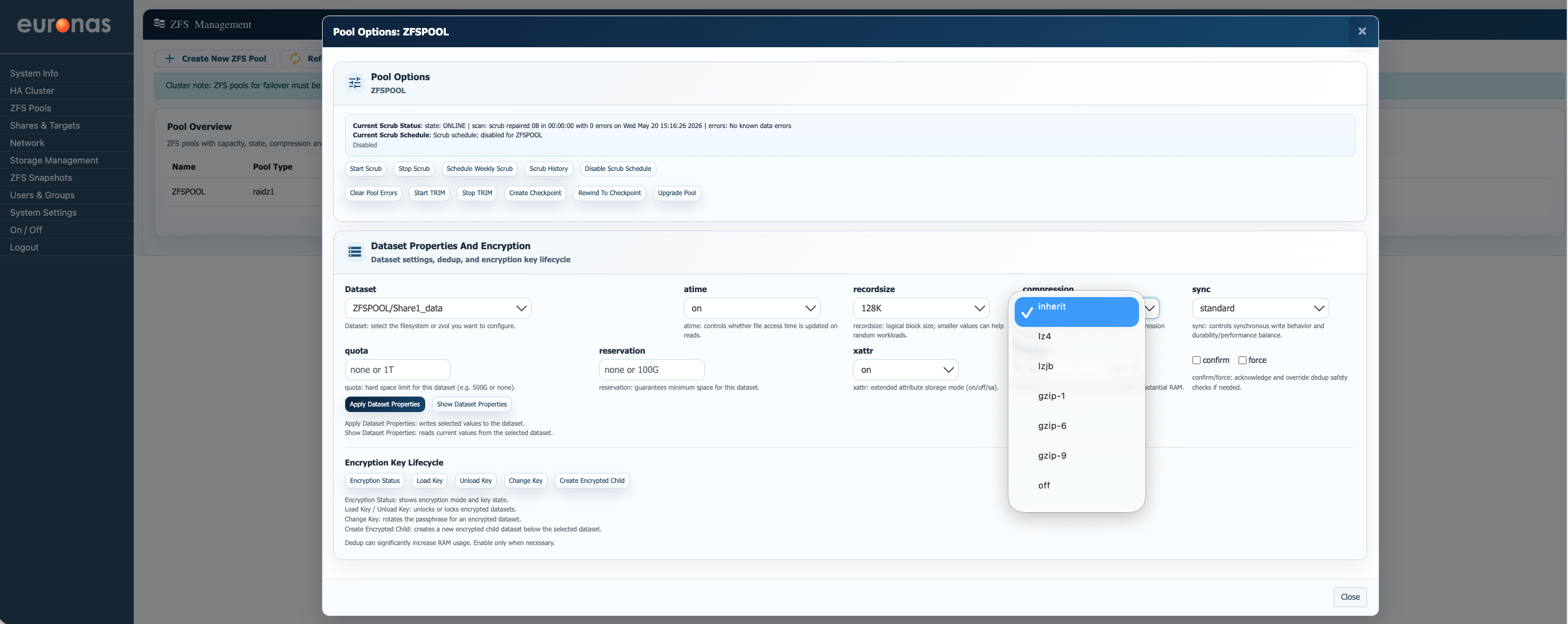
The Compression setting controls how ZFS compresses data written to the selected dataset. Compression can significantly reduce storage consumption and, in many cases, improve performance by reducing the amount of physical data written to disk.
The available options are:
- inherit – Uses the compression setting inherited from the parent pool or dataset. This is the default behaviour unless specifically overridden.
- lz4 – The recommended general-purpose compression algorithm for most workloads. It provides very fast compression and decompression with minimal CPU overhead and is suitable for virtual machines, file shares, and general application data.
- lzjb – An older lightweight compression method with lower compression efficiency than
lz4. Generally retained for legacy compatibility. - gzip-1 / gzip-6 / gzip-9 – Higher compression algorithms offering increasing levels of compression at the cost of additional CPU usage.
gzip-1provides lighter compression with lower CPU overhead.gzip-6offers a balance between compression ratio and CPU usage.gzip-9provides maximum compression but can significantly impact performance on busy systems.
- off – Disables compression entirely for the selected dataset. This may be useful for already compressed data such as media files, encrypted backups, or workloads where CPU overhead must be minimised.
For most deployments, lz4 is the recommended option due to its strong balance of performance and storage efficiency.
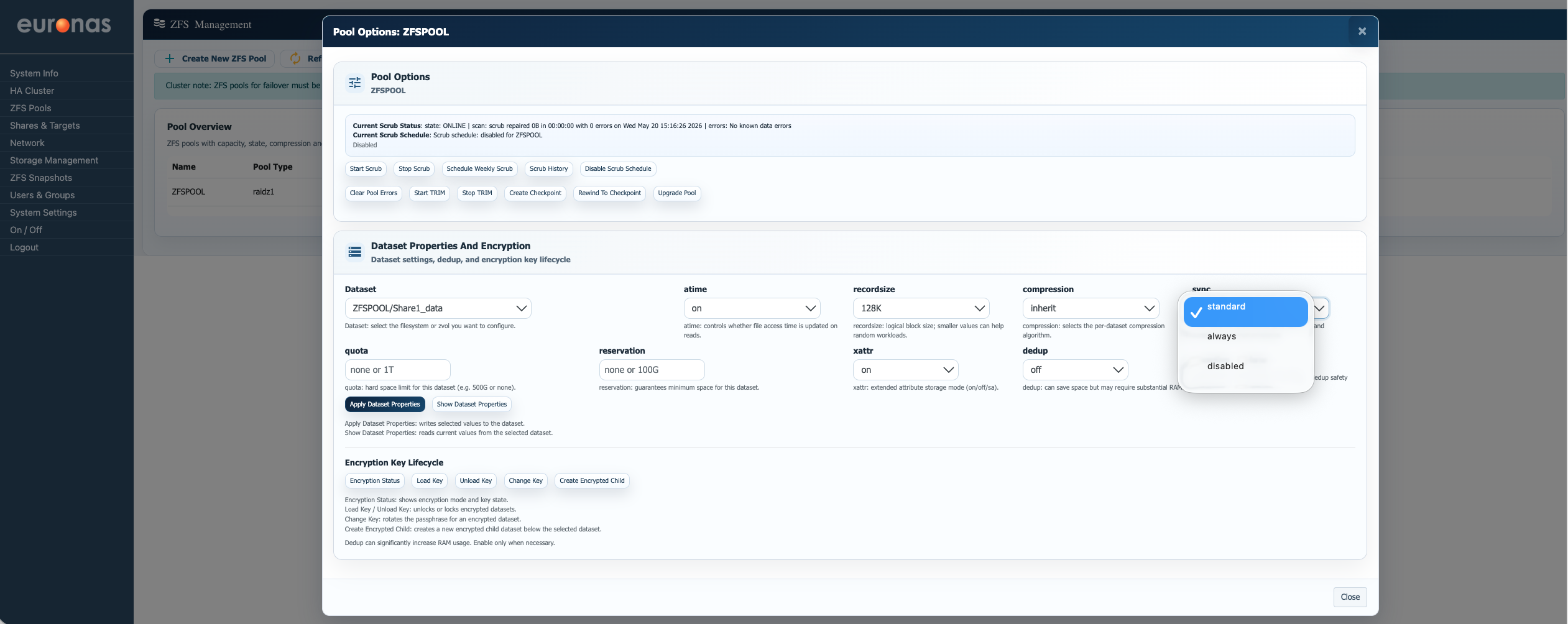
The sync setting controls how ZFS handles synchronous write operations and is one of the most critical settings for balancing performance against data integrity. Incorrectly configuring this option can significantly affect virtual machines, databases, backup applications, and any workload that depends on safe committed writes.
The available options are:
- standard – Uses the behaviour requested by the application. If an application requests synchronous writes, ZFS honours them. If it does not, writes are handled asynchronously. This is the default and safest option for most workloads.
- always – Forces all writes to be treated as synchronous writes regardless of the application request. This provides maximum write integrity protection but can significantly reduce write performance, particularly on systems without dedicated high-speed SLOG devices.
- disabled – Disables synchronous writes entirely and treats all writes asynchronously. This can dramatically improve write performance but introduces a serious risk of data loss or corruption in the event of power failure, kernel panic, or unexpected system interruption.
This setting is particularly important for virtualisation and database workloads. Platforms such as VMware, Hyper-V, SQL databases, and some backup applications may issue synchronous writes specifically to ensure data has been safely committed to stable storage before acknowledging completion. Disabling sync in these environments may improve benchmark numbers, but it effectively bypasses the protection the application is expecting from the storage platform.
A common mistake is disabling sync globally to increase write performance on backup repositories or virtual machine storage. While this can produce very high write throughput, an unexpected outage may leave incomplete transactions, damaged backup chains, corrupt virtual disks, or inconsistent databases.
In environments requiring both high performance and safe synchronous write handling, a properly designed dedicated ZFS SLOG device is often recommended rather than disabling sync protections entirely.
For most production workloads, standard is the recommended setting unless there is a very specific application requirement and the storage behaviour is fully understood. If in doubt, euroNAS strongly recommends discussing workload requirements and storage design with the support team before modifying synchronous write behaviour.
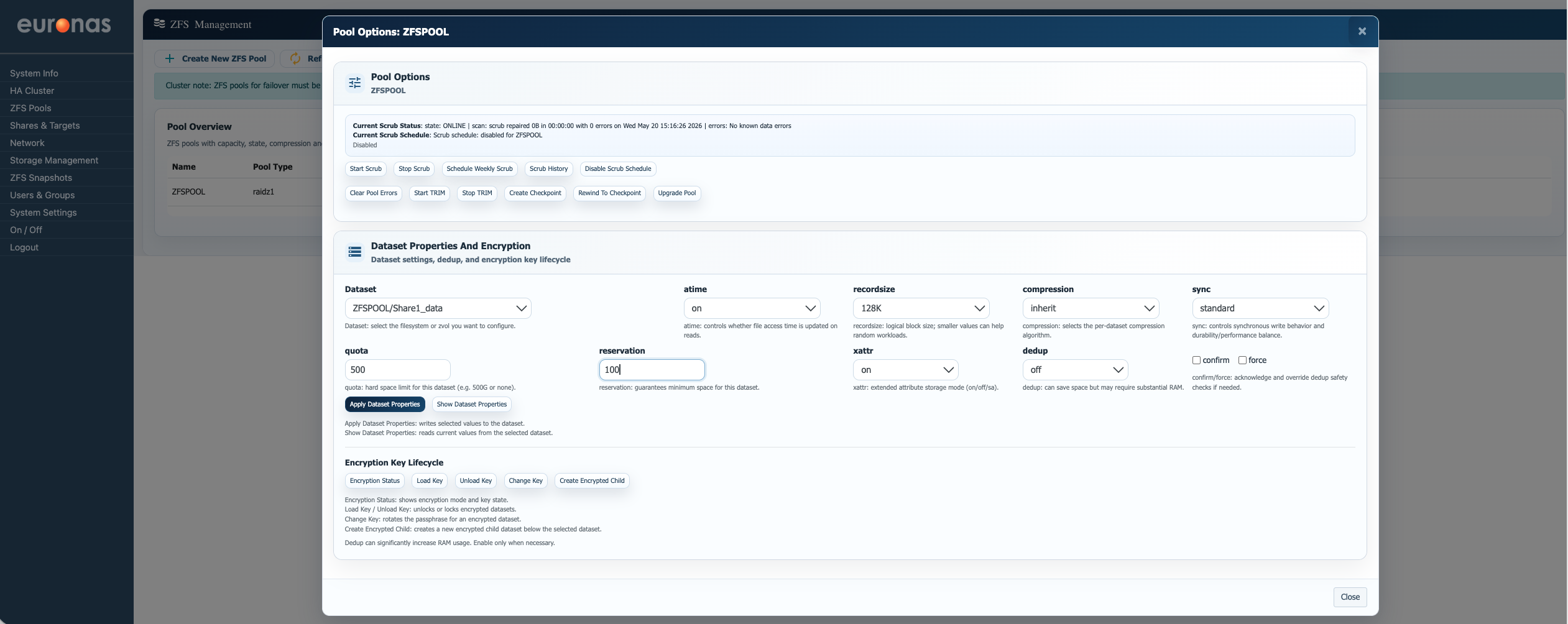
The quota and reservation settings control how storage capacity is managed within a ZFS dataset, but they serve very different purposes. Understanding the difference is important when designing shared storage environments, backup repositories, or multi-tenant systems.
A quota defines the maximum amount of space a dataset is allowed to consume. Once the quota limit is reached, the dataset can no longer write additional data until space is freed. This is commonly used to prevent a single dataset, user share, or application from consuming all available pool capacity.
For example, a department file share may be given a 500G quota to ensure it cannot grow beyond its allocated storage limit regardless of how much free space exists within the pool.
A reservation, in contrast, guarantees a minimum amount of space for the dataset. ZFS effectively sets this capacity aside so it remains available to that dataset even if the overall storage pool becomes heavily utilised.
For example, a virtual machine datastore or backup application may require guaranteed free capacity to continue operating correctly. Applying a 100G reservation ensures that space remains available to the dataset regardless of pool pressure from other workloads.
In simple terms:
- Quota = maximum allowed usage
- Reservation = minimum guaranteed space
These settings are often used together in enterprise environments to control storage growth while still protecting critical applications from running out of capacity unexpectedly. However, excessive reservations across multiple datasets can artificially reduce the amount of free pool space available to other workloads, so careful planning is recommended.
As with all ZFS capacity management features, understanding the operational requirements of the workload is important before applying limits or reservations in production environments.
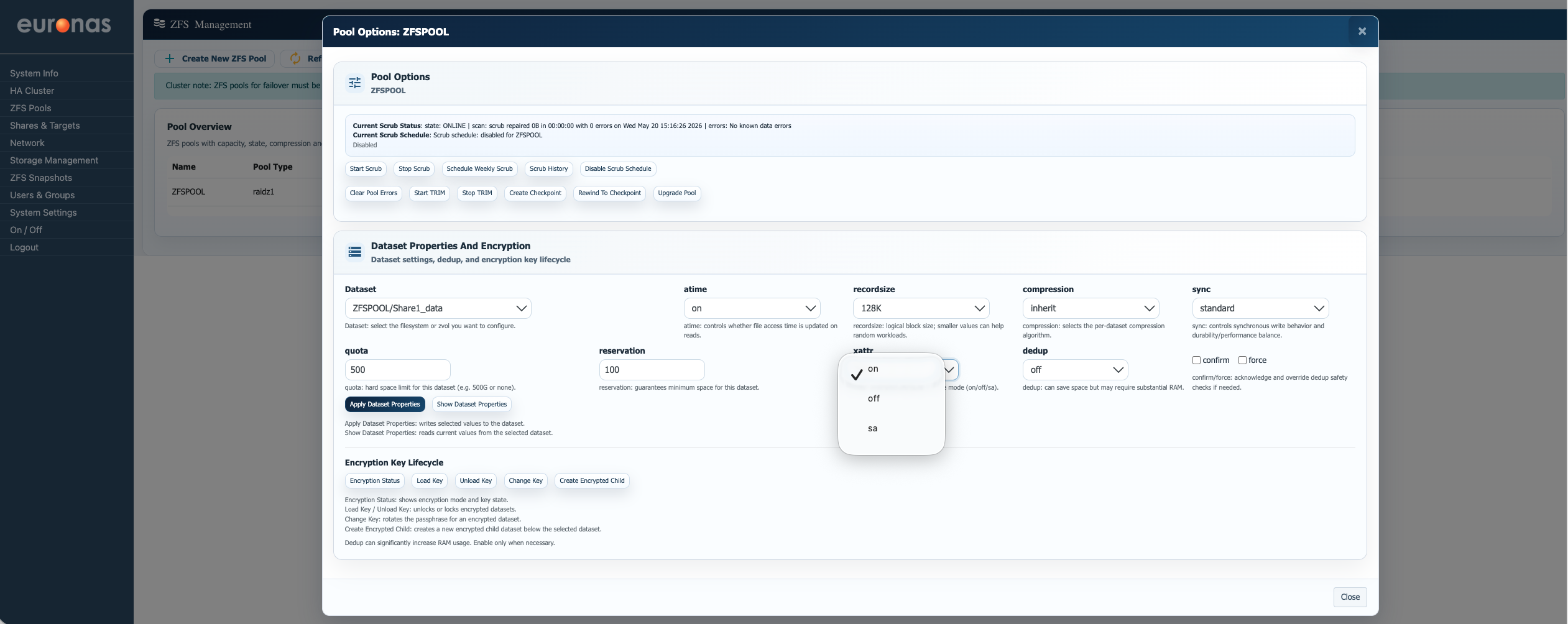
The xattr setting controls how ZFS stores extended file attributes, also known as extended metadata. These attributes are commonly used by modern operating systems, SMB/NFS file sharing, ACLs, macOS metadata, Linux security labels, and some backup or indexing applications.
The available options are:
- on – Stores extended attributes as normal hidden files within the dataset. This is compatible and reliable but can generate additional metadata overhead in environments with very large numbers of files.
- off – Disables extended attribute support entirely. This is rarely recommended as some applications, permissions systems, or SMB features may not function correctly without xattr support.
- sa – Stores extended attributes directly inside the inode’s system attributes rather than as separate hidden files. This can significantly improve metadata performance and reduce overhead, particularly for SMB-heavy environments or datasets containing very large numbers of small files.
The sa option is commonly recommended for modern SMB file sharing workloads as it reduces metadata operations and can improve directory traversal and small-file performance. However, compatibility with older operating systems or legacy applications should always be considered before enabling it across production datasets.
Disabling xattr support entirely may cause unexpected behaviour with ACLs, file permissions, macOS metadata, SELinux labels, or backup applications that rely on extended metadata handling.
As with all dataset tuning options, the correct configuration depends on the workload, client operating systems, and application requirements.
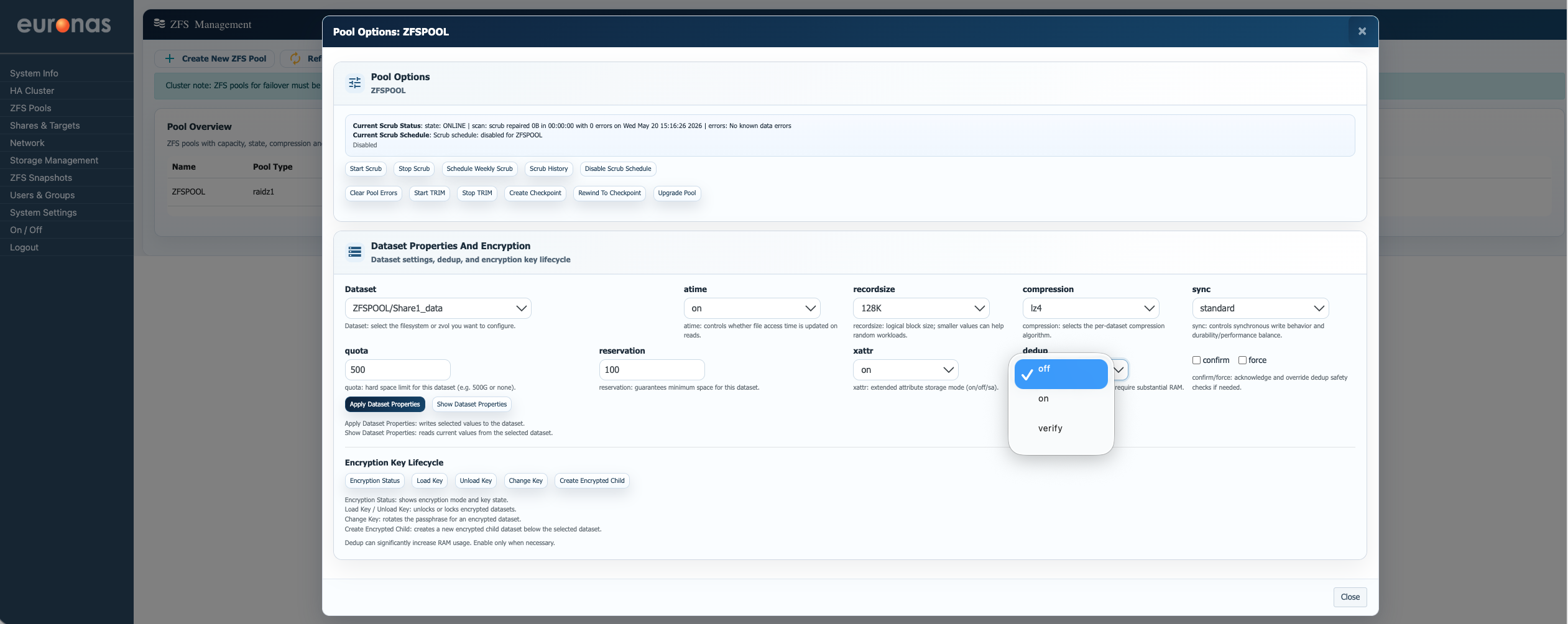
The dedup setting controls ZFS block-level deduplication. When enabled, ZFS checks incoming data blocks against existing blocks already stored within the pool. If identical blocks already exist, ZFS stores only a reference to the existing block rather than writing the same data again. This can dramatically reduce storage consumption in environments containing large amounts of duplicated data.
The available options are:
- off – Deduplication is disabled. All data blocks are written normally. This is the default and safest option for most workloads.
- on – Enables deduplication for the dataset. Duplicate blocks are identified and referenced rather than rewritten.
- verify – Enables deduplication with additional block verification checks before duplicate blocks are reused. This adds additional protection against hash collisions but introduces further CPU overhead and performance impact.
Deduplication can be extremely effective in certain workloads such as VDI environments, cloned virtual desktops, or repetitive backup datasets where large amounts of identical data exist across files or systems. In these cases, dedupe can produce substantial storage savings.
However, deduplication is also one of the most resource-intensive features within ZFS. It requires significant RAM to maintain the deduplication tables and can introduce heavy CPU and metadata overhead. Enabling dedupe incorrectly on workloads with low duplication rates — such as databases, media repositories, encrypted backups, or compressed application data — may result in little or no storage benefit while negatively affecting performance.
For this reason, euroNAS requires the confirm option to be selected before deduplication changes can be applied. This acts as an acknowledgement that deduplication can significantly affect memory usage, pool behaviour, and performance characteristics.
The force option is used to override additional safety checks and should only be used when the implications of deduplication are fully understood. Incorrect use of forced deduplication settings on production systems can lead to severe memory pressure, degraded performance, or operational instability.
As deduplication behaviour depends heavily on workload characteristics, euroNAS strongly recommends discussing dedupe strategy, memory sizing, and workload suitability with the support team before enabling it within production environments.
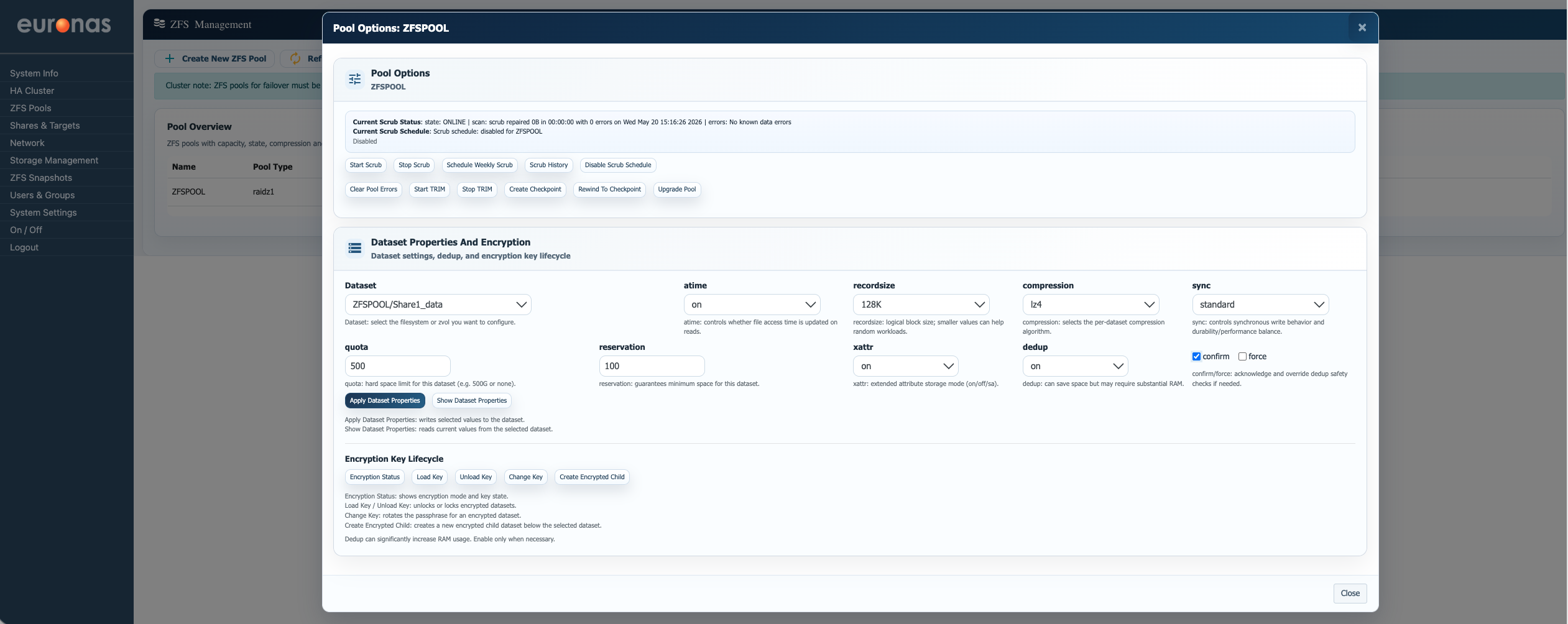
Once the required dataset properties have been configured, select Apply Dataset Properties to commit the changes to the selected dataset. Some settings will apply immediately, while others may only affect newly written data going forward.