
ZFS Pool Maintenance Options
Pool Maintenance and Health Operations
As mentioned the upper section of the Pool Options screen is used for monitoring and maintaining the overall health and integrity of the ZFS pool. From here, administrators can manage scrub operations, review pool status, schedule maintenance tasks, and perform operational recovery functions.
ZFS Scrubbing
Scrubbing is one of the most important maintenance operations within ZFS and should be treated as a normal part of ongoing storage management rather than an occasional repair task.
During a scrub operation, ZFS systematically reads all data blocks across the pool and validates them against their stored checksums. This allows ZFS to detect silent corruption, damaged sectors, unreadable blocks, cabling issues, controller faults, firmware problems, and other forms of data degradation that traditional filesystems may never detect until the data is actually accessed.
Where redundancy exists within the pool, such as mirrors or RAID-Z configurations, ZFS can often automatically repair damaged data during the scrub process by reconstructing the correct block from parity or mirrored copies.
Regular scrubbing is critical because modern disks are extremely large, and unrecoverable read errors become statistically more likely as capacity increases. Without routine scrubbing, corruption can remain hidden for months or years until backups, virtual machines, or production data are required during a recovery event.
Administrators should also understand that scrub operations are highly intensive. A scrub effectively forces the storage platform to sequentially read the entire pool, which generates sustained disk activity, controller load, cache pressure, and backend I/O traffic. On large pools this can take many hours or even days depending on pool size, drive speed, utilisation levels, and active client workload.
As a result, scrub operations can impact production performance, particularly on heavily utilised systems. While ZFS is designed to remain online during scrubbing, administrators should ideally schedule scrubs during quieter operational periods where possible.
Pool utilisation also plays a major role in scrub efficiency and overall ZFS performance. Allowing a ZFS pool to exceed roughly 80% utilisation is generally considered poor operational practice. As free space becomes constrained, ZFS has fewer available allocation regions to work with, resulting in increased fragmentation, reduced write efficiency, higher latency, longer resilver and scrub times, and significantly increased performance degradation under load.
A heavily filled pool also reduces ZFS’s ability to efficiently self-heal damaged blocks during maintenance operations and can dramatically increase recovery times following disk failures or resilver events.
In enterprise environments, maintaining adequate free capacity within the pool should be treated as part of normal operational planning rather than unused waste space.
A resilver operation occurs when ZFS rebuilds data onto a replacement disk or automatically activates a configured hot spare following a drive failure. Unlike traditional RAID systems, ZFS only rebuilds the blocks that contain live data rather than rebuilding the entire disk. This reduces unnecessary I/O and can significantly improve rebuild times on partially utilised pools. During resilvering, ZFS also validates data integrity using its checksum system, helping ensure damaged or corrupted blocks are not blindly copied onto the replacement device.
Controls are provided to manually start or stop scrub operations, configure recurring scrub schedules, review scrub history, and disable scheduled scrubbing where operational requirements demand manual control over maintenance windows.
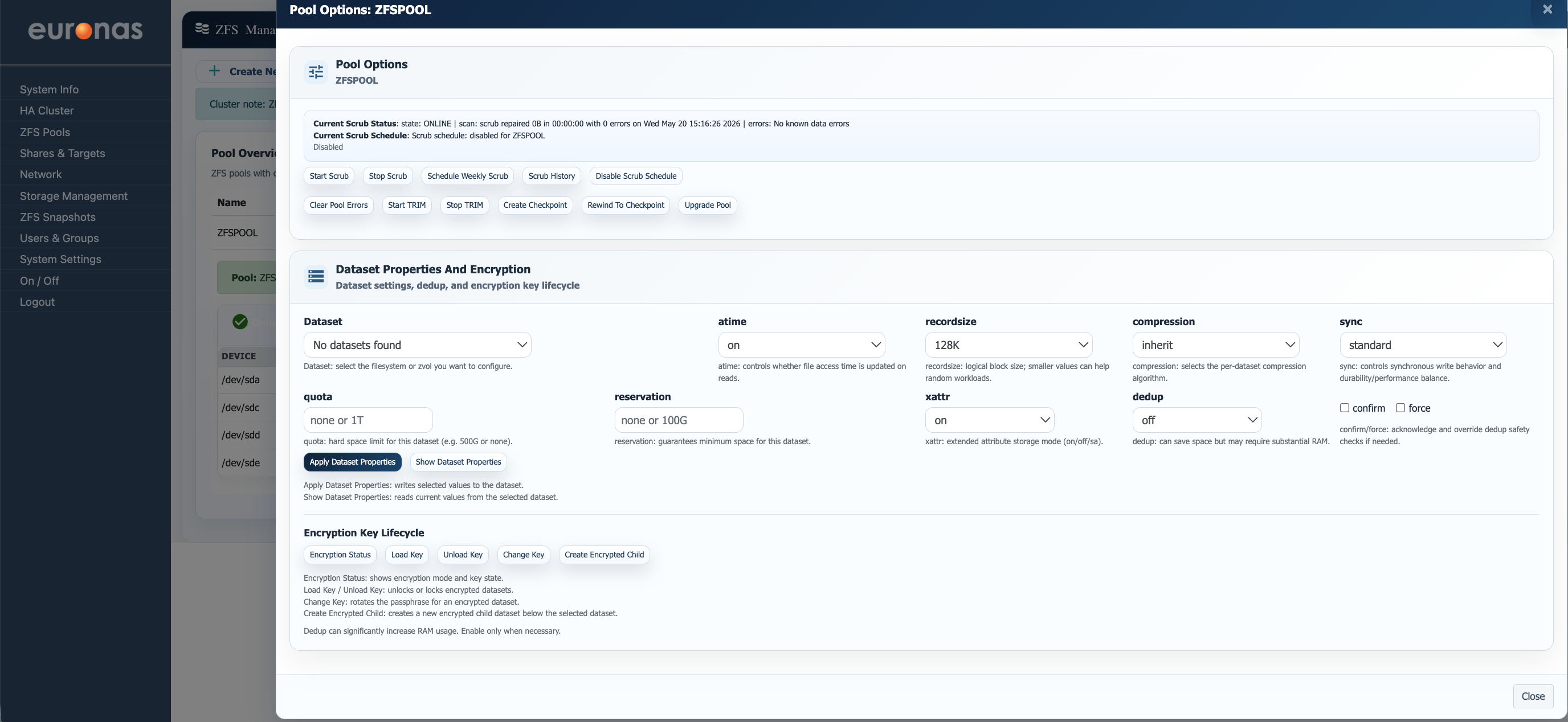
To manually start a scrub operation, select Start Scrub. To stop an active scrub, select Stop Scrub.
Note: If a scrub operation is stopped before completion, ZFS will restart the scrub from the beginning the next time it is launched. Scrub progress is not resumed from the previous stopping point.
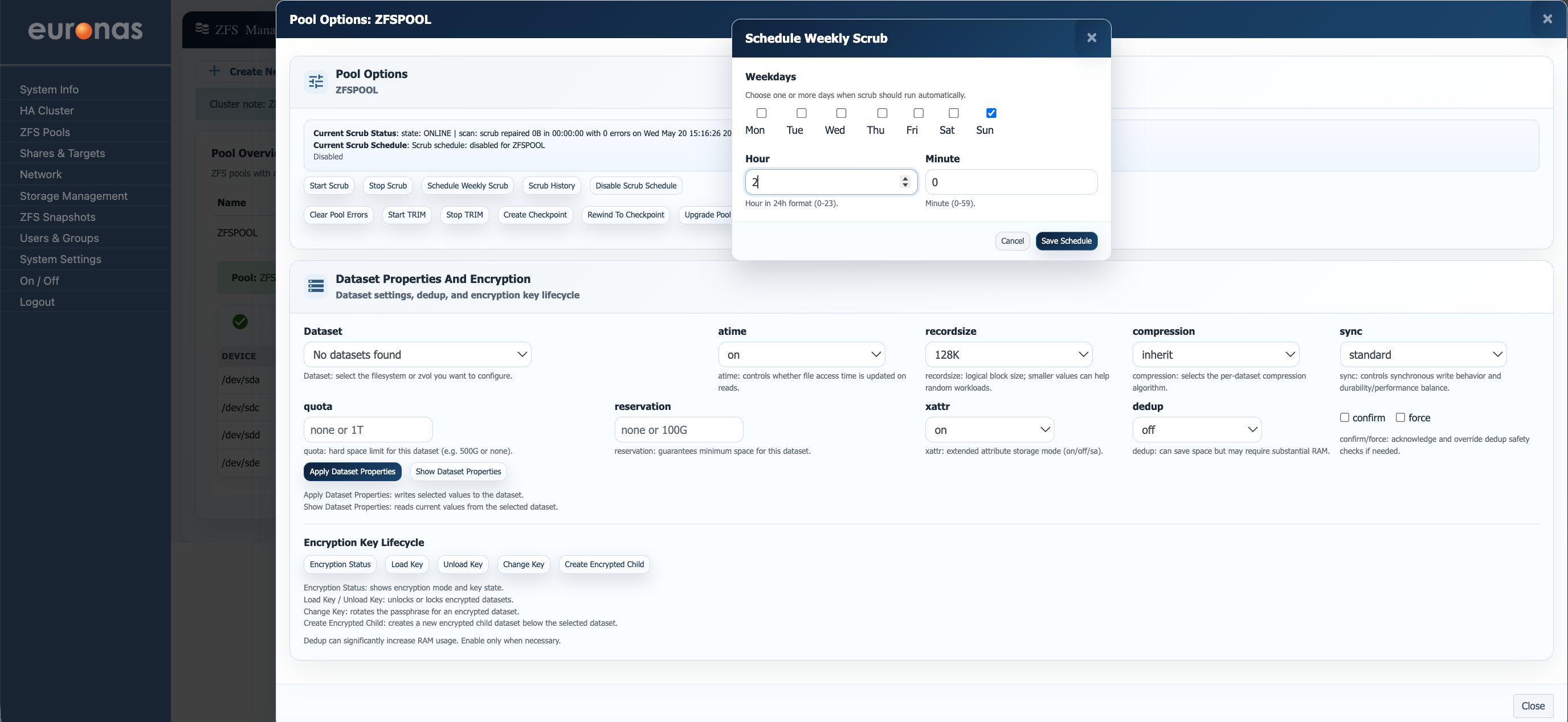
It is recommended that a weekly scrub schedule be configured using the Schedule Weekly Scrub option to help identify disk, cabling, controller, or data integrity issues before they become operational problems.
The Schedule Weekly Scrub window allows administrators to define when automatic scrub operations will run. One or more days can be selected along with the execution time using 24-hour format. In this example, the scrub is configured to run every Sunday at 02:00.
Once saved, euroNAS will automatically start the scrub operation at the configured time each week.
ZFS TRIM
TRIM for SSD and NVMe storage works in a similar way to how a ZFS scrub helps maintain pool integrity. While a scrub validates and repairs data consistency across the pool, TRIM helps maintain the internal health and sustained performance of flash storage by informing the device which blocks are no longer in use and can be safely reclaimed. This becomes particularly important where SSD or NVMe devices are being used as metadata, cache, or write acceleration layers, as these devices are often handling large amounts of small-block IO and filesystem metadata activity. A good example would be environments containing large numbers of small files, virtual machine images, or heavy directory traversal workloads, where metadata devices can become extremely active. Regular TRIM operations help the SSD maintain efficient internal garbage collection and free block management, which in turn assists in sustaining responsive metadata and cache read performance over time while also reducing unnecessary flash wear.
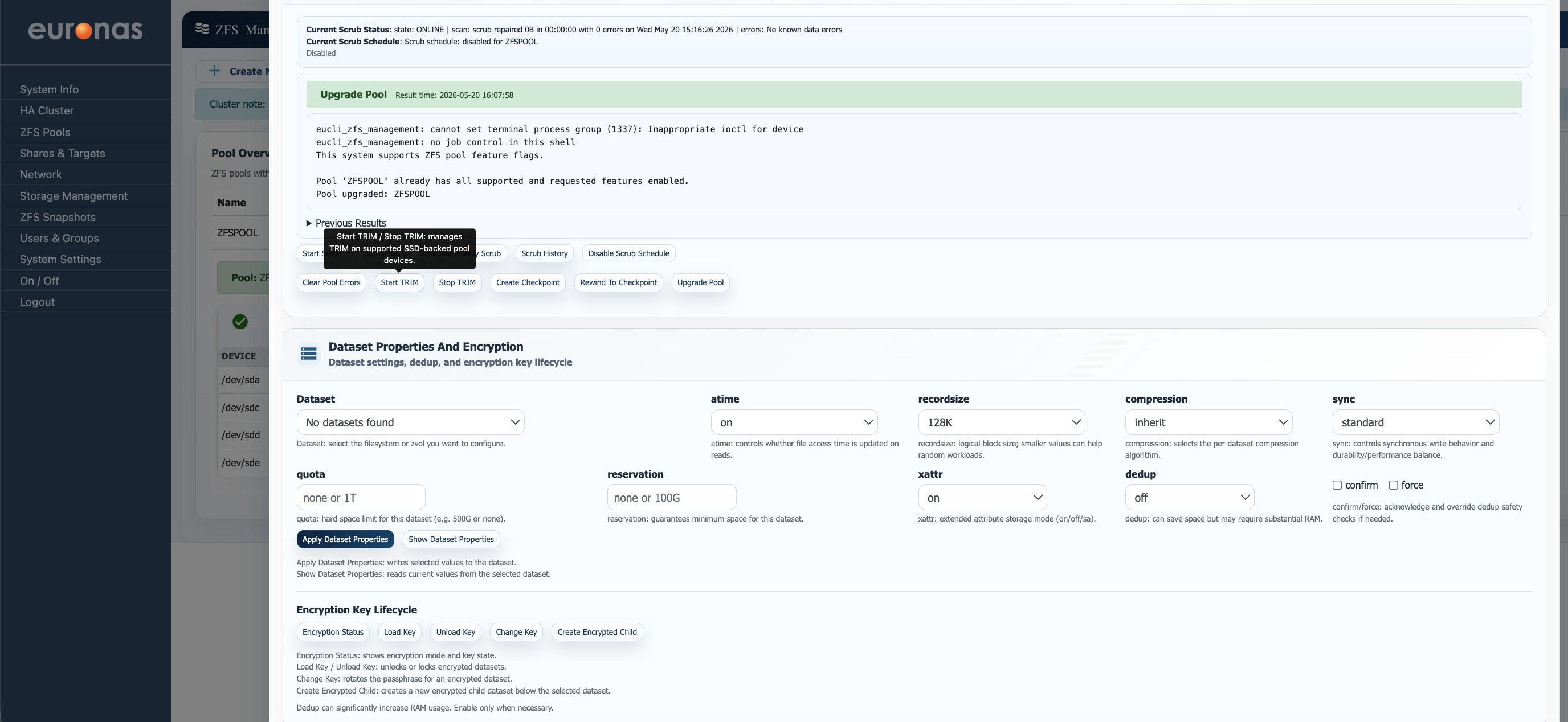
The Start TRIM option is used to manually begin a TRIM operation on supported SSD and NVMe devices within the pool. During the operation, ZFS will notify the underlying flash devices which blocks are no longer in use so they can be reclaimed internally. The Stop TRIM option can be used to halt an active TRIM operation if required.
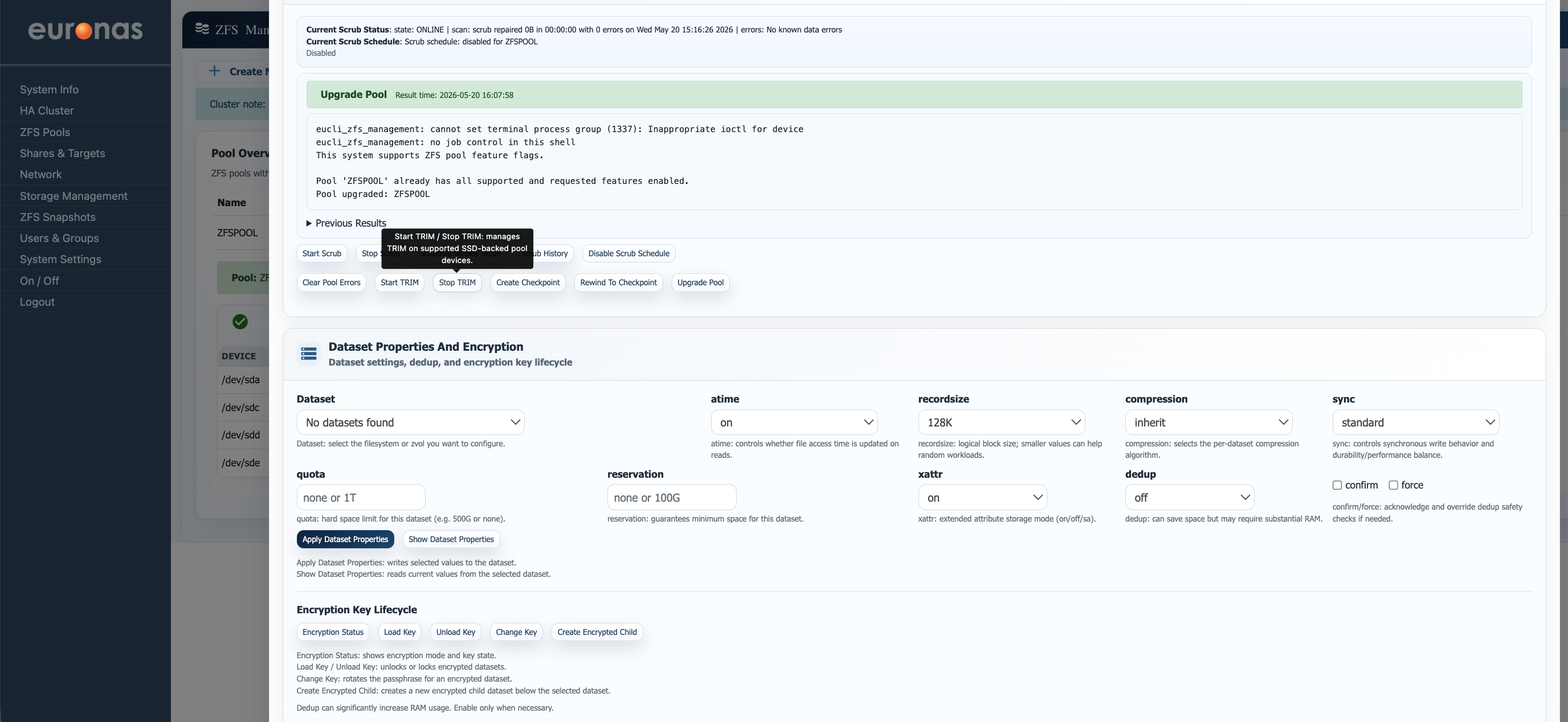
Understanding ZFS Checkpoints
A ZFS checkpoint should be treated as a temporary safety net for the entire storage pool. When a checkpoint is created, ZFS preserves the exact state of the pool at that moment in time, allowing the administrator to roll the entire pool back if required. Any snapshots, datasets, or data created after the checkpoint was taken will be lost if the pool is rewound to that checkpoint. Because ZFS must preserve all blocks referenced by the checkpoint, deleted data may continue consuming space until the checkpoint is removed. For this reason, checkpoints are typically used only during major maintenance, upgrades, or risky configuration changes and should normally be removed once the work has been successfully completed. Due to the potential impact on pool state, snapshots, and available capacity, it is strongly recommended that euroNAS Support is consulted before using this feature.
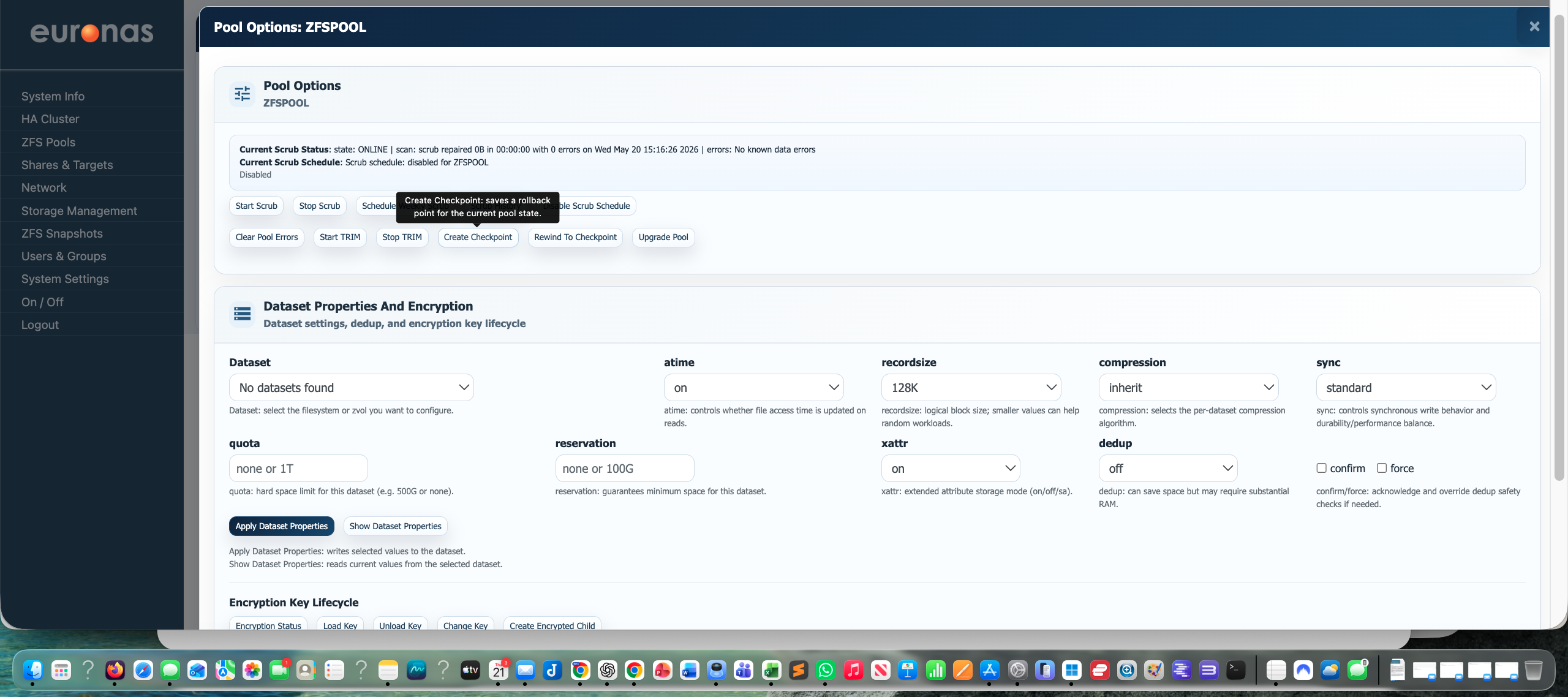
The Create Checkpoint option is used to manually begin a checkpoint creation operation
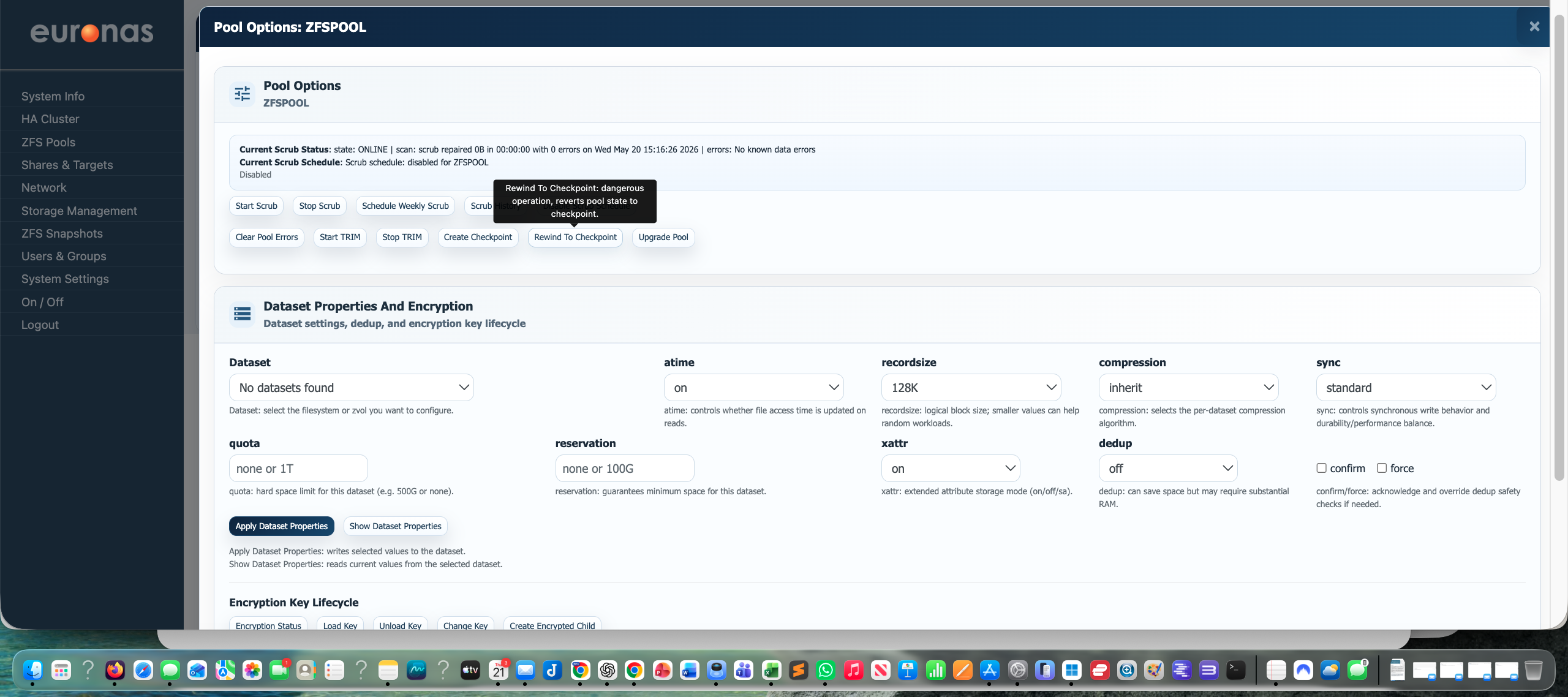
The Rewind to Checkpoint option is used to manually rewind to a previously created checkpoint
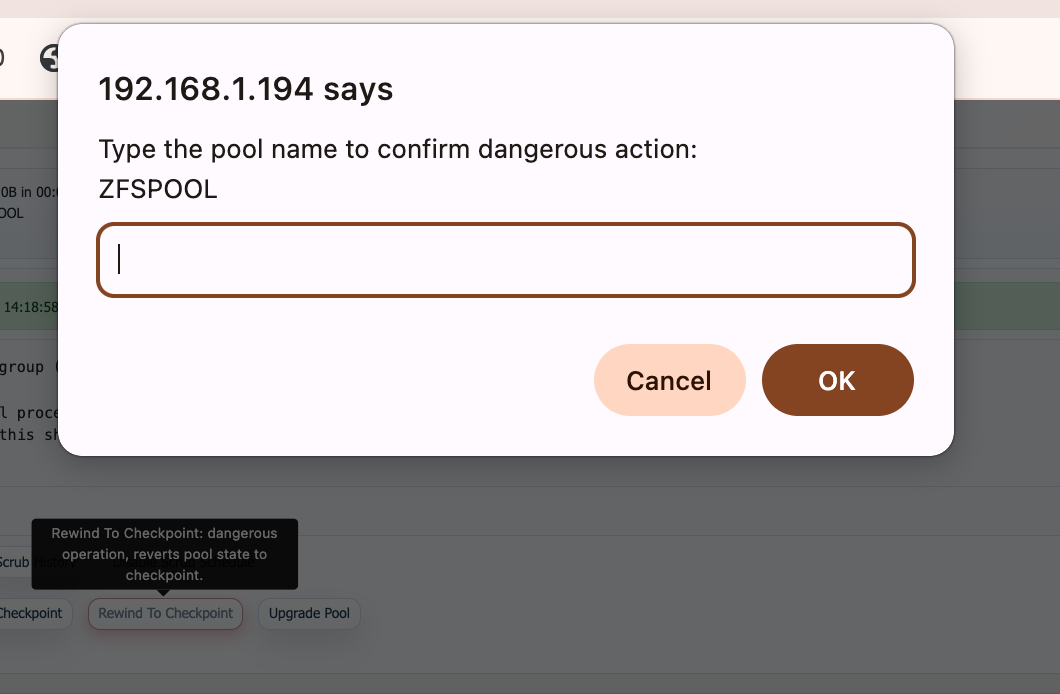
Enter the pool name which in this example is ZFSPOOL
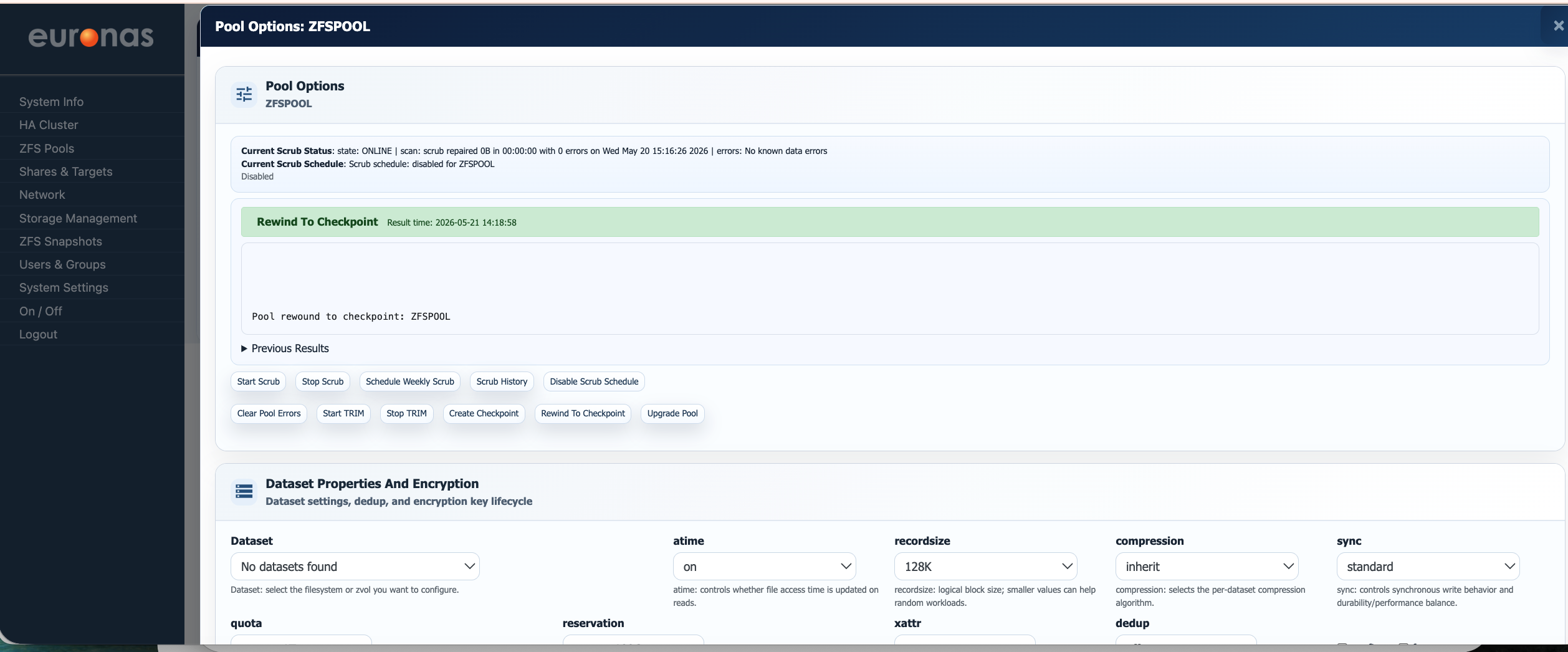
Upon completion, the message “Pool Rewound to checkpoint: ZFSPOOL” will be displayed, confirming that the pool has been successfully reverted to the last saved checkpoint state.
ZFS Pool Upgrade
ZFS pools have an internal feature version that controls what capabilities the pool can use. As ZFS develops over time, new features are added such as improved metadata handling, performance optimisations, resiliency enhancements, allocation improvements, and additional filesystem functionality. A pool upgrade enables those features on the selected pool.
A simple way to think about it is as upgrading the underlying filesystem engine behind the storage pool. The pool will continue to operate without the upgrade, however newer ZFS functionality will remain unavailable until the pool is upgraded.
Pool upgrades are typically performed following:
- A euroNAS software upgrade
- A platform update
- The introduction of newer ZFS features
- A requirement for specific functionality or performance improvements
Once upgraded, the pool format is permanently changed to support the newly enabled features. This means older systems or older software versions may no longer be able to import that pool. Because of this, administrators should ensure all cluster nodes, replication targets, backup systems, and disaster recovery environments support the same ZFS feature level before proceeding.
In clustered or replicated environments, inconsistent pool feature versions can create operational complications.
For example:
- Replication between pools may fail or behave unpredictably
- A newer pool may not import on an older standby node
- Recovery or failover operations may become more complex
- Feature mismatches can introduce support and troubleshooting challenges
For this reason, euroNAS would generally recommend keeping production pools and cluster nodes aligned to the same supported ZFS feature level wherever possible.
Although pool upgrades are generally safe, they should still be treated as a controlled maintenance activity.
Administrators should ensure:
- Current backups exist
- Replication is healthy
- All cluster nodes are fully updated
- Recovery and rollback considerations are understood before proceeding
As with any low-level filesystem operation, pool upgrades should only be performed when there is a clear operational or feature requirement to do so. euroNAS therefore strongly recommends engaging with euroNAS Support before upgrading production pools to ensure the upgrade is required, compatible across the environment, and aligned with the wider cluster, replication, and recovery design.