
Network Bonding
This network bonding function applies only to euroNAS system networking. It should be used for euroNAS management, storage, cluster, heartbeat, replication, or other system-level network interfaces.
: If the network ports are used by a virtual switch, do not create the bond with this function. In this case, bonding must be configured directly through the virtual switch, so that the virtual networking layer can correctly manage redundancy, load balancing, and VM network traffic.
With euroNAS software, you can combine several network ports into a single bonded interface. This can provide higher bandwidth, improved redundancy, or both, depending on the selected bonding mode.
The following bonding modes are supported:
With euroNAS software you can bond several networking ports in to a single unit. With this functionality you can achieve greater bandwidth and / or greater redundancy.
Following options are supported
- Round Robin
Performance and Redundancy – load balancing and fault tolerance.
Traffic is balanced between the ports - Port Failover
Redundancy – one port is active – others are in standby.
In case of failure standby port takes over immediately - Broadcast
Redundancy – transmits everything on all slave interfaces - Dynamic Link Aggregation (802.3ad)
Performance and Redundancy – requires switch that supports 802.3ad - Adaptive Load Balancing
Performance – works with any switch. Not suitable for direct connection
: for direct connection (without switch) only type Port Failover and Broadcast is supported
Go to network management and click on “Network Administration”.
1. Select option “Create Network Bond”

2. Select network ports

3. Select what kind of network bond you wish to create

4. Configure the TCP/IP settings – in case that one of the ports already is configured – it will offer its settings

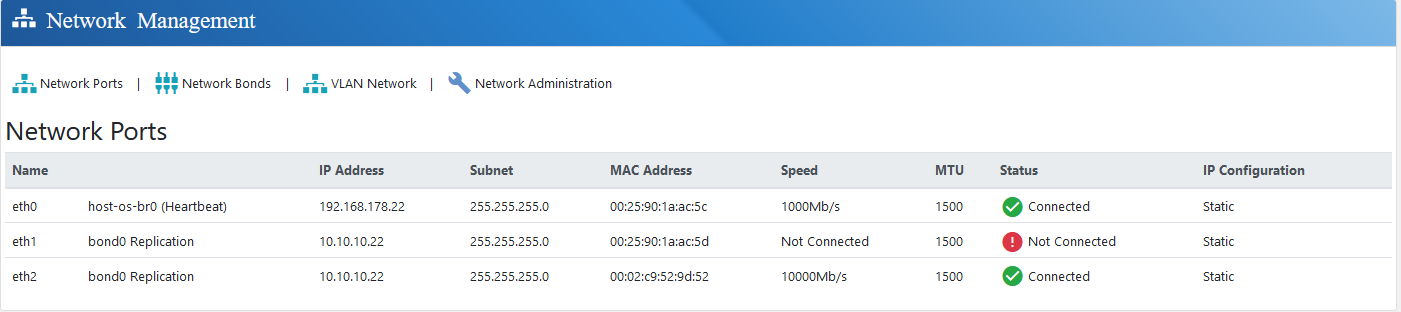
5. In the network overview you can now see the ports and its network bond group. In this example we have removed the networking cable on purpose.
6. Under network bonds you can see more Details of this bond. In this example we have removed the networking cable on purpose.
