
IP Group – Examples and Validation
These examples show common IP Group designs for file, S3, and iSCSI services. All names and IP addresses are examples. Use the values defined for your environment.
For a complete description of every setting, see IP Groups.
Quick placement guide
| Use case | Example | Recommended placement | Client configuration |
|---|---|---|---|
| One SMB or NFS endpoint with failover | files.example.local → 192.168.50.20 |
Keep addresses together | Clients use the service name instead of a cluster node address. |
| SMB, NFS, or S3 across multiple gateways | s3.example.local → 192.168.50.31 and 192.168.50.32 |
Distribute addresses across gateway nodes | Publish every intended address under the same DNS name. |
| iSCSI multipath | Portals 10.20.30.41 and 10.20.30.42 |
Distribute addresses across gateway nodes | The initiator discovers all portals and uses a supported multipath driver. |
Example 1: SMB or NFS with one service address
Use this design for one stable file-service endpoint with automatic failover.
| IP Group | FileServices |
|---|---|
| Service address | 192.168.50.20 |
| Gateway order | EEKAS-1 → EEKAS-2 → EEKAS-3 |
| Address placement | Keep addresses together |
| DNS | files.example.local → 192.168.50.20 |
- Reserve the address and exclude it from DHCP.
- Create the IP Group with the intended gateway nodes.
- Assign the group to the SMB or NFS service.
- Connect clients through
files.example.local. - Verify access and then perform a controlled failover test.
Example 2: Distributed S3 access
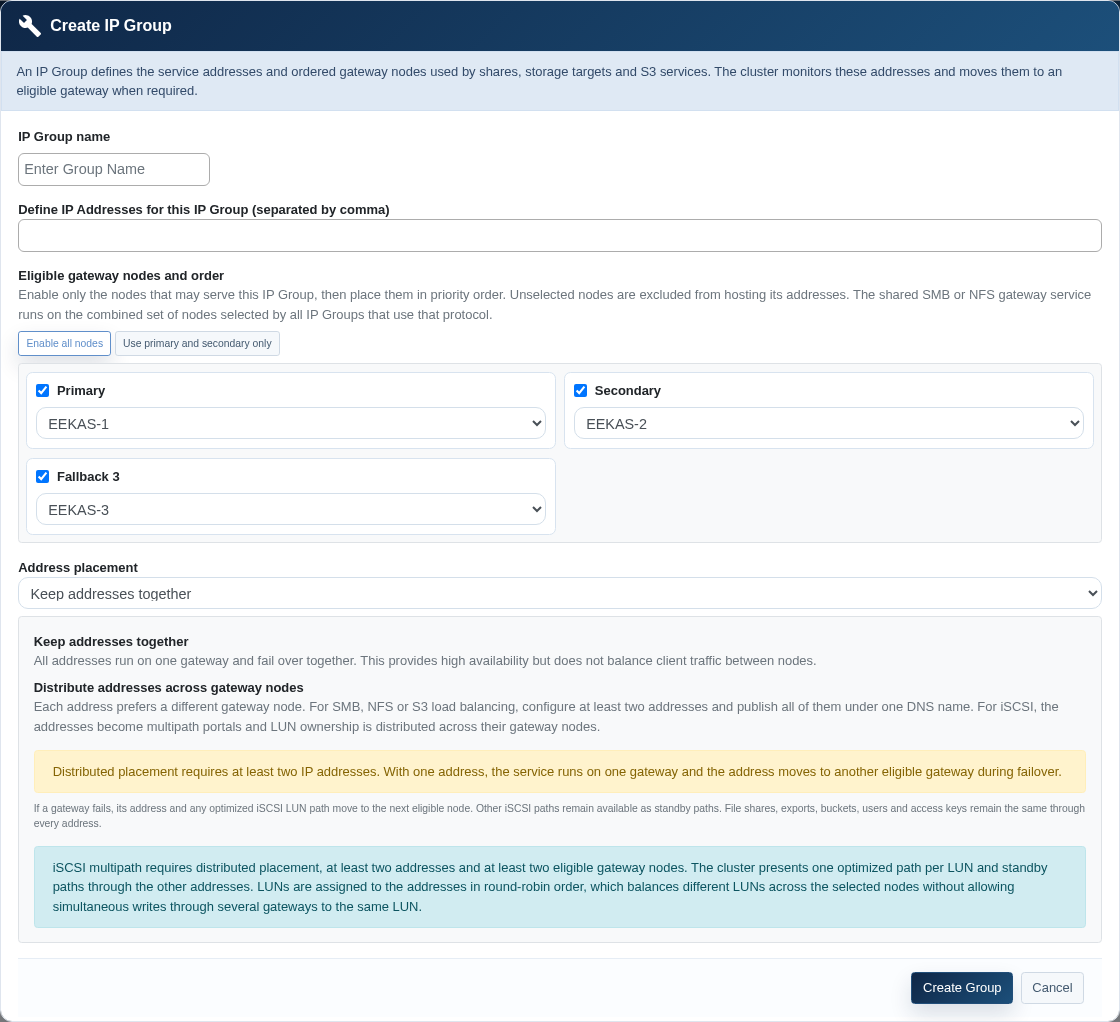
This design distributes two S3 addresses across two preferred gateway nodes.
| IP Group | S3Service |
|---|---|
| Service addresses | 192.168.50.31, 192.168.50.32 |
| Gateway order | EEKAS-1 → EEKAS-2 → EEKAS-3 |
| Address placement | Distribute addresses across gateway nodes |
| DNS | Two A records for s3.example.local |
| TLS | The certificate includes s3.example.local as a valid name. |
- Create both DNS records and confirm that clients can reach both addresses.
- Create the distributed IP Group with at least two eligible gateway nodes.
- Select the IP Group while creating the S3 drive.
- Confirm in the overview that the addresses are mapped to different nodes.
- Test DNS and HTTPS from every required client network.
nslookup s3.example.local
curl -I https://s3.example.local/
An unauthenticated S3 request may return an HTTP error such as 403. For this test, confirm that DNS resolution, the network connection, and TLS verification succeed.
Example 3: iSCSI with multipath
| IP Group | iSCSI-MPIO |
|---|---|
| Portal addresses | 10.20.30.41, 10.20.30.42 |
| Gateway nodes | At least two eligible nodes |
| Address placement | Distribute addresses across gateway nodes |
| Initiator | All portal addresses discovered and multipath enabled |
On Linux, you can check the portals and paths with commands such as:
iscsiadm -m discovery -t sendtargets -p 10.20.30.41
iscsiadm -m discovery -t sendtargets -p 10.20.30.42
multipath -ll
Confirm that each LUN has one optimized path and that the other paths remain available as standby paths.
Check the current state
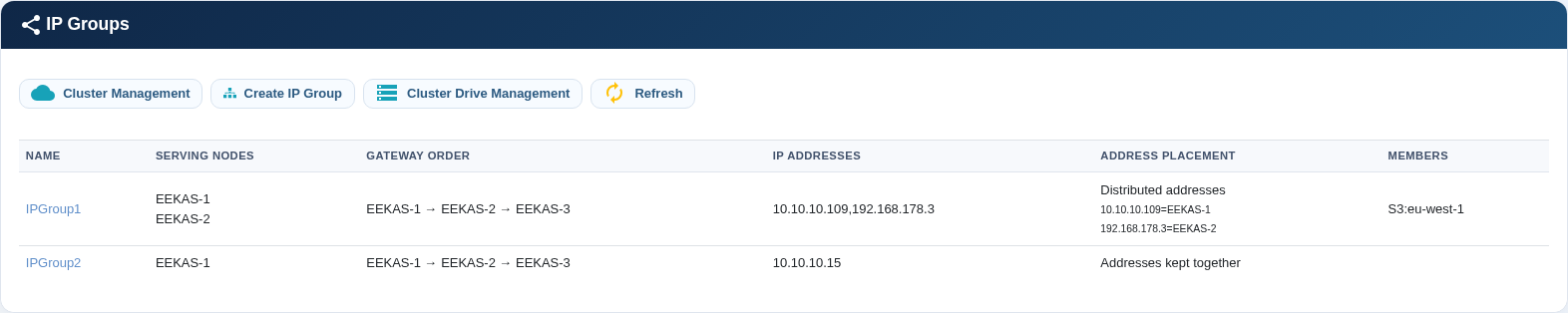
- Serving nodes: Shows the nodes currently serving addresses.
- Gateway order: Matches the planned primary, secondary, and fallback preference.
- Address placement: Shows the mapping of each address in distributed groups.
- Members: Contains every service that depends on the group.
Client validation commands
| Goal | Example | Expected result |
|---|---|---|
| DNS resolution | nslookup files.example.local |
The name returns every intended service address. |
| Routing on Linux | ip route get 192.168.50.20 |
The expected interface and gateway are used. |
| S3 over HTTPS | curl -I https://s3.example.local/ |
The connection and certificate verification succeed. The HTTP status depends on authentication. |
| iSCSI portal discovery | iscsiadm -m discovery -t sendtargets -p 10.20.30.41 |
The expected targets and portals are displayed. |
| Multipath on Linux | multipath -ll |
Optimized and available standby paths are visible. |
A failed ping does not necessarily prove that the service is unavailable because a firewall may block ICMP. Always test the protocol that clients actually use.
Impact of common changes
| Change | Possible impact | Verify afterward |
|---|---|---|
| Change gateway order | Addresses may move to other nodes. | Serving nodes, address mapping, and service access. |
| Disable a gateway node | Its addresses move to eligible nodes. | Sufficient remaining gateways and client access. |
| Add or remove an IP address | DNS and client configuration may require updates. | DNS, routing, firewall, and access through every address. |
| Assign S3 to another IP Group | A short connection interruption may occur. | Progress result, DNS, TLS, and endpoint access. |
| Delete an IP Group | Its service addresses are removed. | Remove all members and dependent DNS records first. |
Perform a controlled failover test
- Confirm cluster health, quorum, and at least one alternate eligible gateway.
- Record the current service-address and node mapping.
- Start the approved maintenance or failover action.
- Refresh the IP Group overview and verify the new mapping.
- Test the service through its DNS name and every published address.
- Restore the node and confirm that it returns to the eligible set.
The service address does not have to move back to the previous node immediately after recovery. Keeping it on a healthy node avoids another unnecessary interruption.