
Operational Checklist and Troubleshooting
Use this checklist before handing an eEKAS S3 service to users or customers.
Service Health
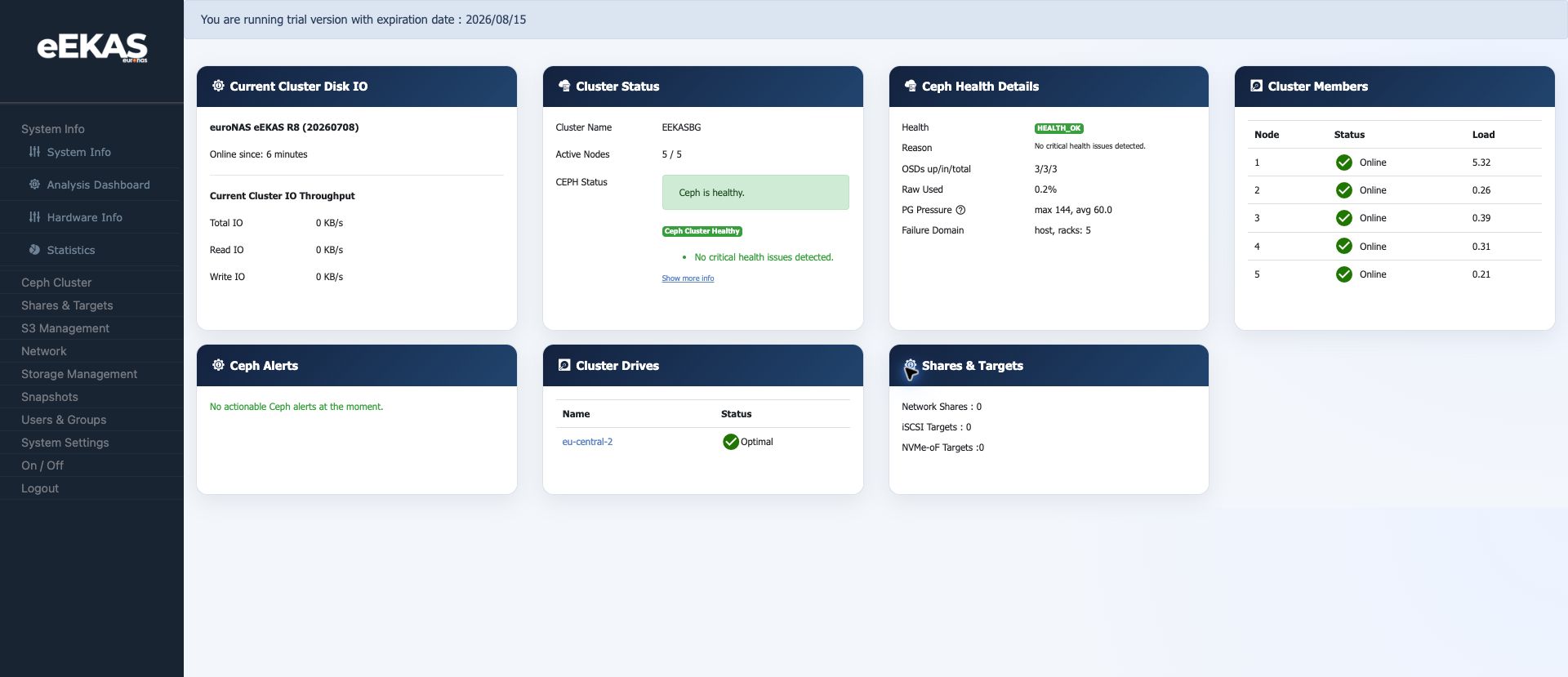
Check the eEKAS dashboard:
- Cluster health is OK.
- All expected nodes are online.
- OSDs are up/in.
- Current load is acceptable.
- No actionable Ceph alerts are shown.
S3 Service Console
Open S3 Management and verify:
- Site domains are present.
- Access port is shown.
- Bucket count is expected.
- User count is expected.
- Realm, zonegroup and zone are correct.
- Object storage runtime is reported.
User Access
For each user:
- Confirm UID, display name and site.
- Confirm max bucket limit.
- Confirm user quota.
- Store access key and secret key securely.
- Test login in the S3 Browser.
- Test access with an S3 client such as AWS CLI or s3cmd.
Bucket Access
For each bucket:
- Confirm owner UID.
- Confirm site/zone.
- Confirm quota.
- Confirm max object limit.
- Confirm whether WORM/Object Lock is required.
- Generate connection help for handover.
- Test upload and download.
Client Connection Test
Use the Connection Help dialog to confirm:
- Endpoint.
- Bucket name.
- Required credentials.
- AWS CLI command style.
- s3cmd path-style settings.
If clients cannot connect:
- Verify DNS resolves to the intended S3 endpoint.
- Verify the HTTPS port is reachable.
- Verify certificate trust.
- Verify access key and secret key.
- Verify bucket ownership and permissions.
- Verify whether the client requires path-style or virtual-host style addressing.
- Check that the endpoint responds as S3 and does not redirect to another web application such as a generic
login.phppage.
Browser Troubleshooting
If the S3 Browser login fails:
- Confirm that the selected endpoint is correct.
- Confirm that the S3 Browser web application can reach the configured S3 service.
- Confirm that the access key belongs to the intended user.
- Confirm that the secret key was copied correctly.
- Rotate the key if the secret is unknown.
- Confirm that the user is active and not suspended.
- Confirm that the user has assigned bucket access.
- Try a normal user created from the
Userstab. If that user can log in but a Customer Storage-created user cannot, investigate the Customer Storage provisioning path. - Test the intended direct S3 API endpoint separately with AWS CLI, s3cmd or another S3 client.
For S3 Browser upload testing:
- Use the visible
Uploadbutton and select a small non-sensitive test file. - Confirm that the object appears in the object list.
- Refresh the bucket list and confirm the object count and size update.
- Remove the test object and test bucket after capture.
If automated browser capture cannot select the file, check that the Chrome extension has file URL access enabled.
If direct S3 client tests fail:
- Verify DNS resolves to the intended S3 API endpoint.
- Verify the HTTPS port is the S3 gateway port.
- Check whether the endpoint redirects to
login.phpor another web UI. - Compare the S3 Browser endpoint with the endpoint shown in
Connection Help. - Confirm whether the environment expects path-style addressing.
Policy, CORS and Lifecycle
When editing advanced bucket configuration:
- Save a copy of the current JSON or XML before changing it.
- Use least-privilege policy rules.
- Keep CORS origins narrow.
- Test lifecycle rules on non-production buckets first.
- Confirm versioning behavior before expiring or deleting objects.
WORM and Retention
For protected storage:
- Decide WORM requirements before creating the bucket.
- Set the required WORM mode.
- Set default retention days or years.
- Test delete and overwrite behavior.
- Document whether retention is operational or compliance-oriented.
Billing and Usage
For customer storage:
- Use consistent customer IDs.
- Set quota during provisioning.
- Test the generated user credentials in the S3 Browser before customer handover.
- If Customer Storage-created credentials fail while Users-tab credentials work, use a normal Users-tab user as a temporary workaround and record the Customer Storage issue.
- Collect usage for the correct date range.
- Review usage by user and by bucket.
- Export billing CSV and user summary CSV for the selected period.
Topology Changes
Before changing topology defaults:
- Record current realm, zonegroup, zone and period info.
- Check sync status.
- Apply defaults only when the selected context is correct.
- Commit period deliberately.
- Re-test endpoint access after topology changes.
Source: eEKAS live test cluster and supplied euroNAS eEKAS documents, prepared on 2026-07-09.